
Google has slowly improved the Android operating system over the last nine months. While Android 16 was released last summer, a September update was quickly followed by one in November, which meant new features like AI summaries for texts and a Google Maps update.
In March, a new Pixel Drop included so many new features that it probably felt overwhelming for Pixel phone owners. Don’t worry, though, I’ve gone through the free upgrade with a fine-tooth comb to find the ones you might not be benefiting from.
A new Comfort View that is easier on the eyes, new themes and icons, and a brand new “try on” feature for shopping that might just blow your mind are all worth the download.
1. Comfort View

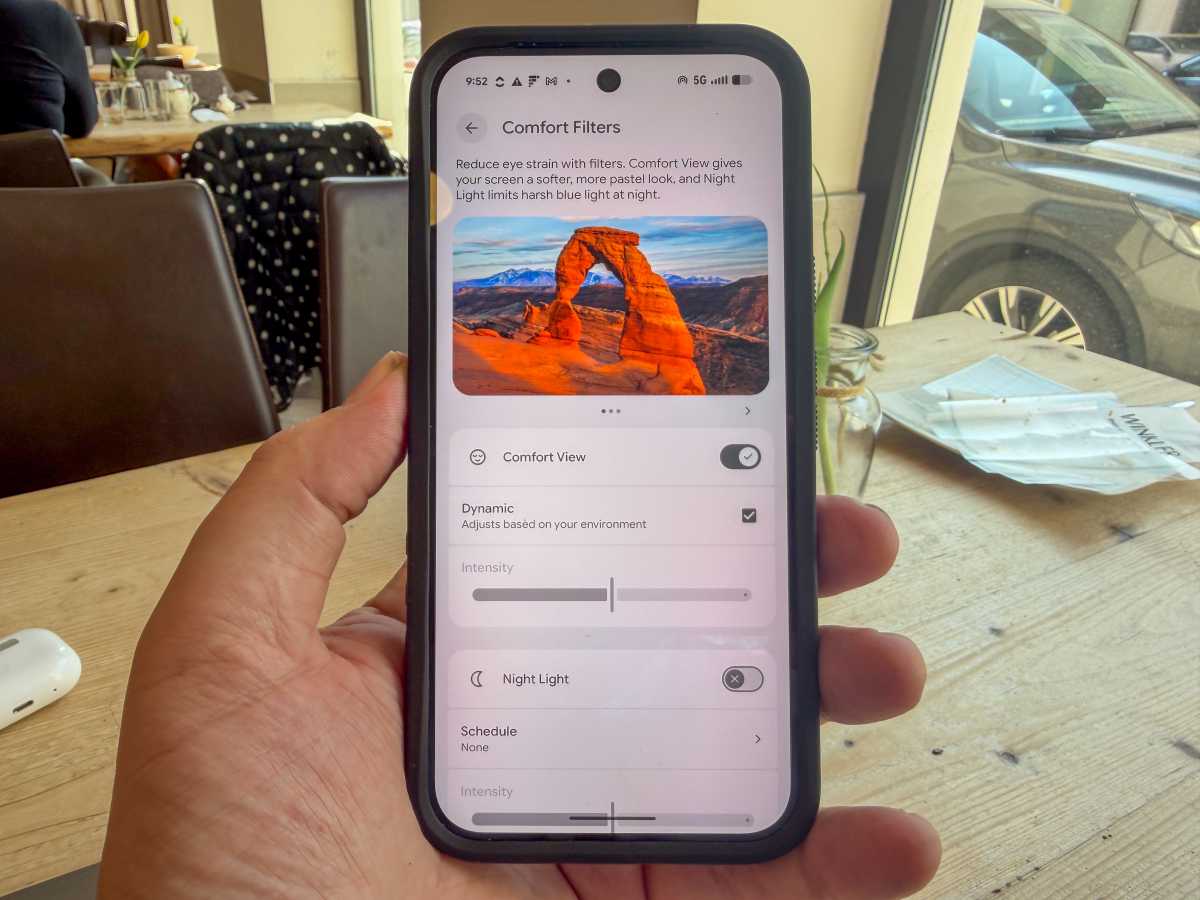
New Comfort view in the March drop
John Brandon / Foundry
This feature seems a bit unheralded to me, especially in light of the recent AI additions of the last two drops (some of which I explain below, but there are a few you will find in this piece about the Samsung Galaxy S26).
Yet, the first Pixel Drop of 2026 includes a new display option called Comfort View, which actually works as advertised. I was blown away by how this setting helped with eye strain almost immediately, making the screen look smoother.
To find it, just search in Settings for Comfort View and then enable the feature. At least for me, I noticed the screen looked less harsh and, over time, caused less eye strain. You can also use a setting called Dynamic that adjusts the colors and brightness for your surroundings.
2. At a Glance improvements
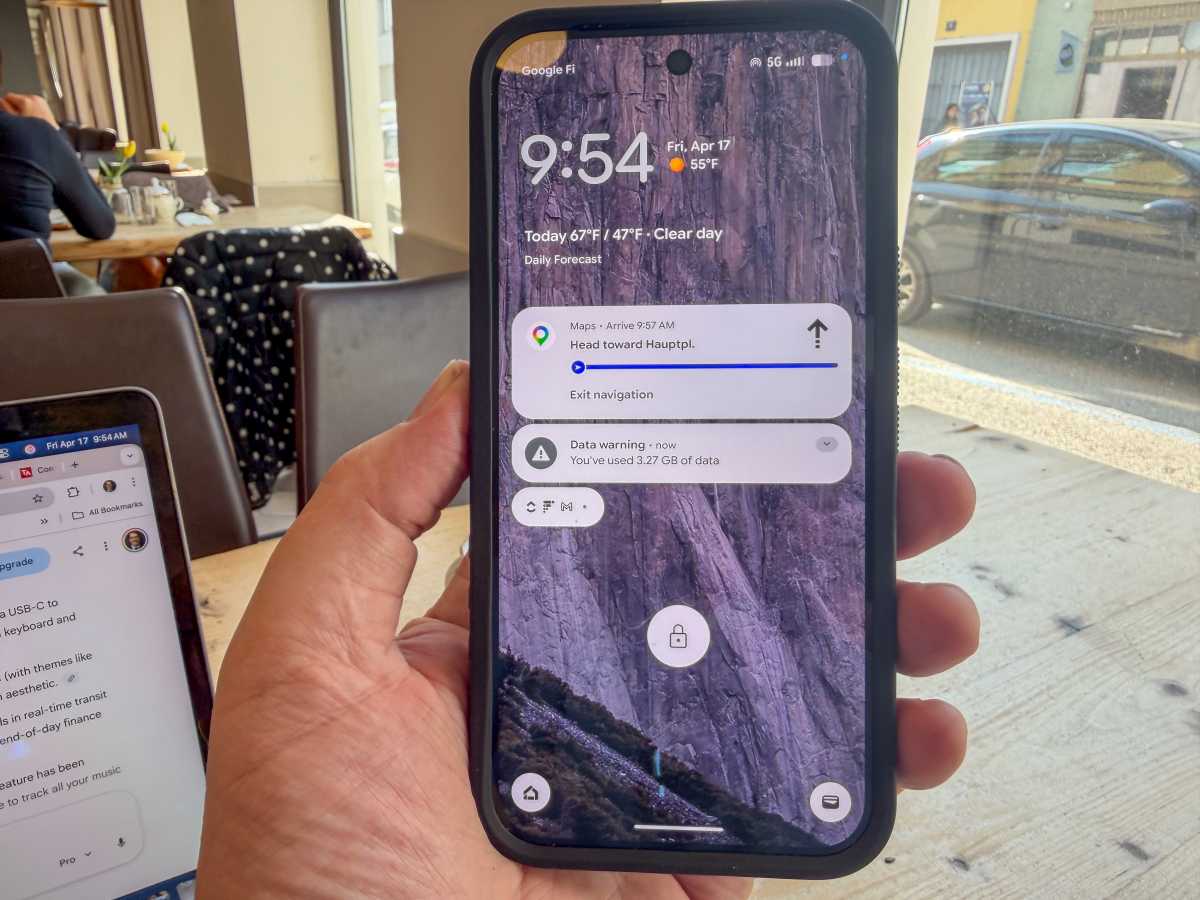
New At a Glance features for commuters
John Brandon / Foundry
Commuters will appreciate this new feature. On the Home screen, there’s a small “At a Glance” area just below the clock.
Usually, you can see weather updates and other quick notices, but with the March upgrade, you can also see warnings about your commute. For example, if you take a train to work and there’s a delay, you’ll see the warning without having to set a waypoint.
I happened to be visiting Austria on vacation when this feature became available. I noticed it didn’t actually work – then saw a note from Google that At a Glance is not available in Europe or the UK. That’s a shame, since commuting by train is so popular here.
3. Now Playing standalone app
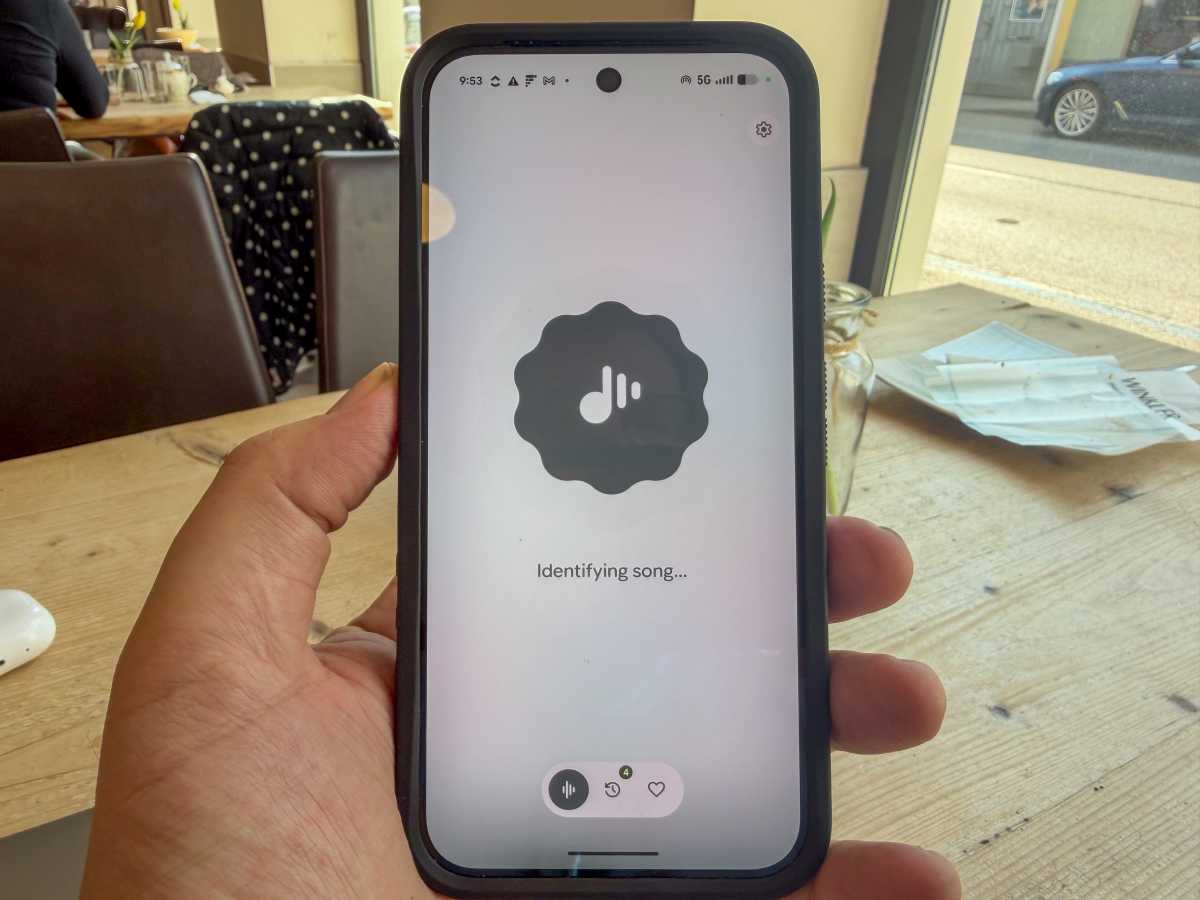
Now Playing is an app not a widget now
John Brandon / Foundry
Android has included a widget called Now Playing for many years – it’s one of our favourite features – but it’s somewhat buried in the settings.
It worked similarly to the Shazam app (which is now baked into Siri on the iPhone) in that you could find out which artist and song was playing in real-time. For example, in a movie theater, you could identify the closing credits song and also see recognised songs on your lockscreen.
Google has now turned Now Playing into a full app, which makes it easier to find and use. Just search for the Now Playing app, then let the app listen to the song for a while to identify the artist and track. There’s also a history of the songs it has recognised, so you can revisit them.
4. Add the new SpongeBob SquarePants theme
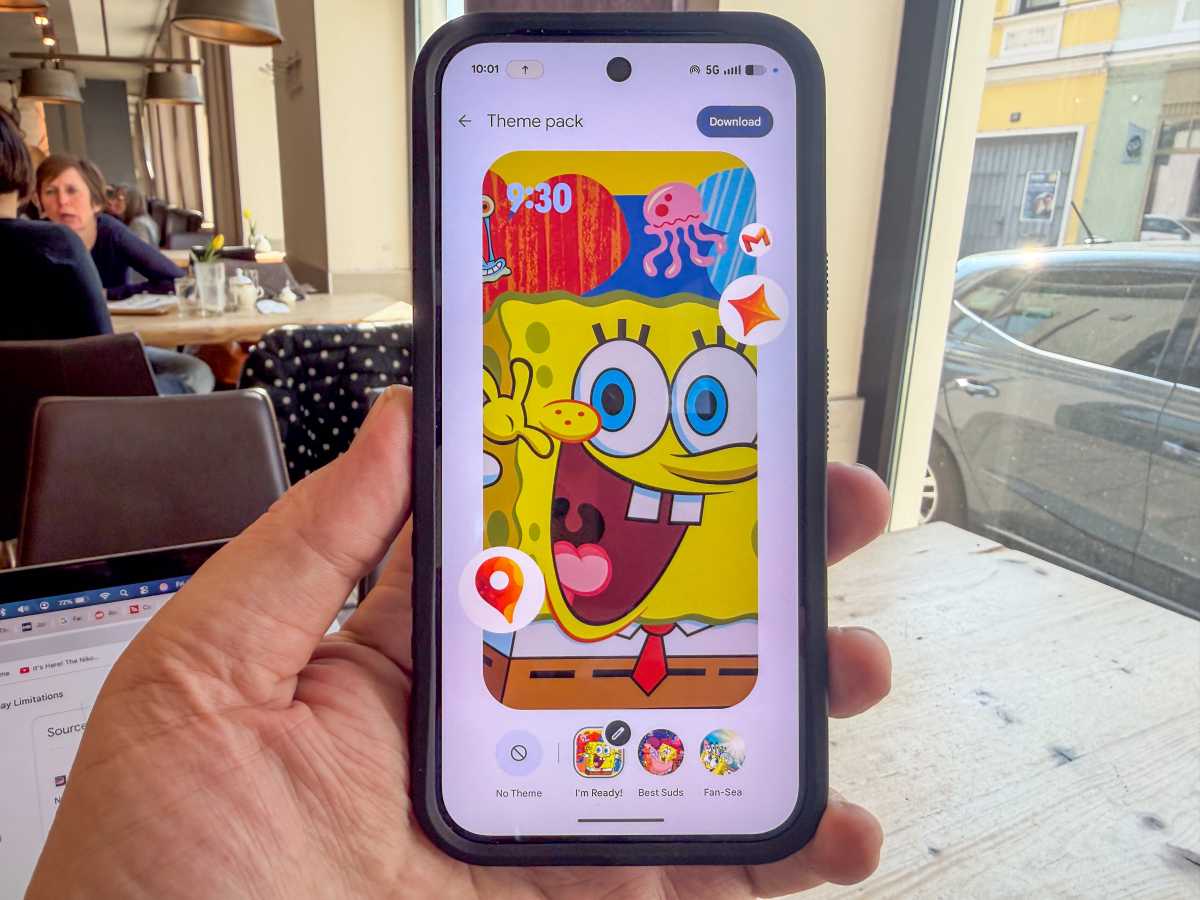
The new SpongeBob theme
John Brandon / Foundry
I can’t say I’m a big fan of this animated show, but the theme pack proves Google is trying new things and appealing to a wider audience.
You don’t have to use the default theme on an Android device, and the SpongeBob pack almost makes it seem like you have an all-new phone. To install the theme pack, just long-press anywhere on the home screen and select Wallpaper & Style, select Theme pack, then look for the SpongeBob SquarePants theme and install it.
You might have to download it (look in the upper right for the download button).
By the way, if you’re like me and you use a launcher such as Nova to mimic the look and feel of an iPhone, you may need to choose the default Pixel Launcher before you can install a new theme pack.
In Settings, search for “launcher” and, under Default home app, choose Pixel Launcher.
5. Change the icons
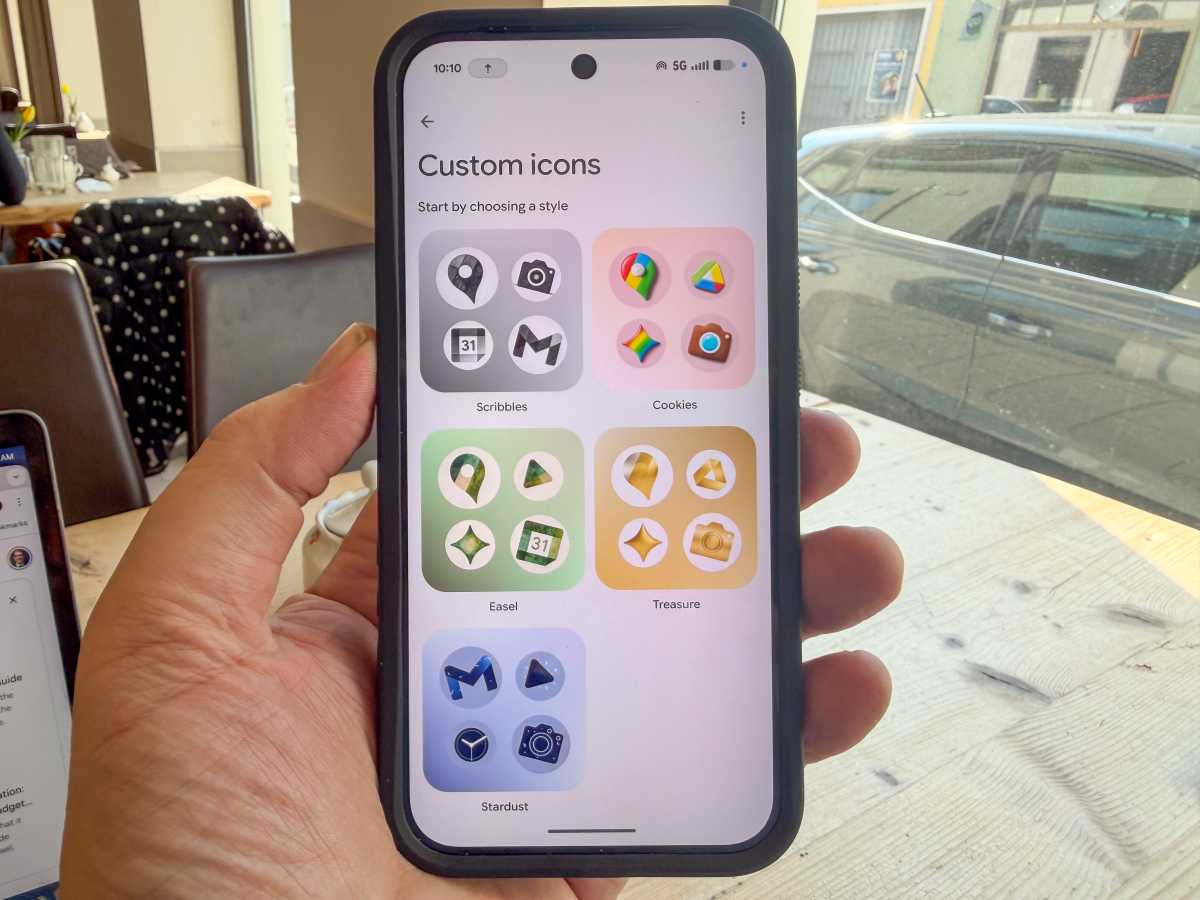
AI can generate icons for you
John Brandon / Foundry
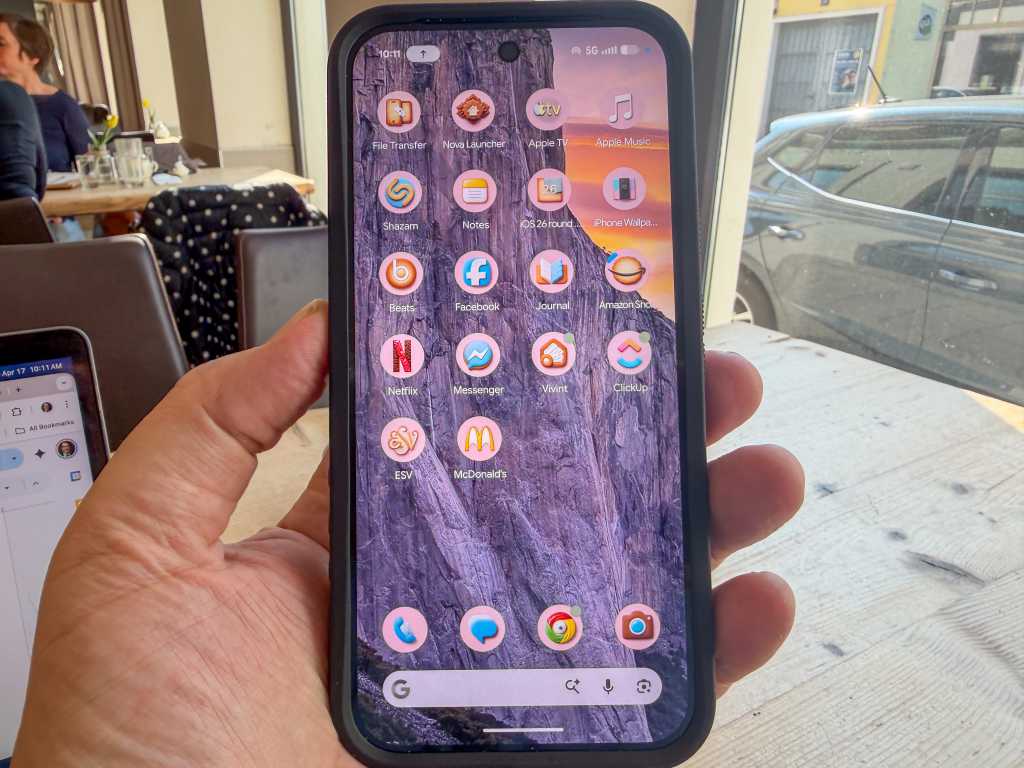
I’ve tested several apps that let you change the Android theme and the icons. My favorite is Nova Launcher because you can match the look of the iPhone icons.
In the March Pixel Drop, Google includes new icons that look surprisingly artistic. You can generate them using AI as well. The new styles include Scribbles, Cookies, Easel, Treasure and Stardust.
To use them, make sure you are using the default Home app called Pixel Launcher (see above for how to use it). Long-press on the Home screen and select Wallpapers & Styles, then Icons. Select the new Create option and then select the style you want. I used the Cookies option and the icons took on a colorful style with bright reds and browns.
6. Circle to search ‘try on’ feature
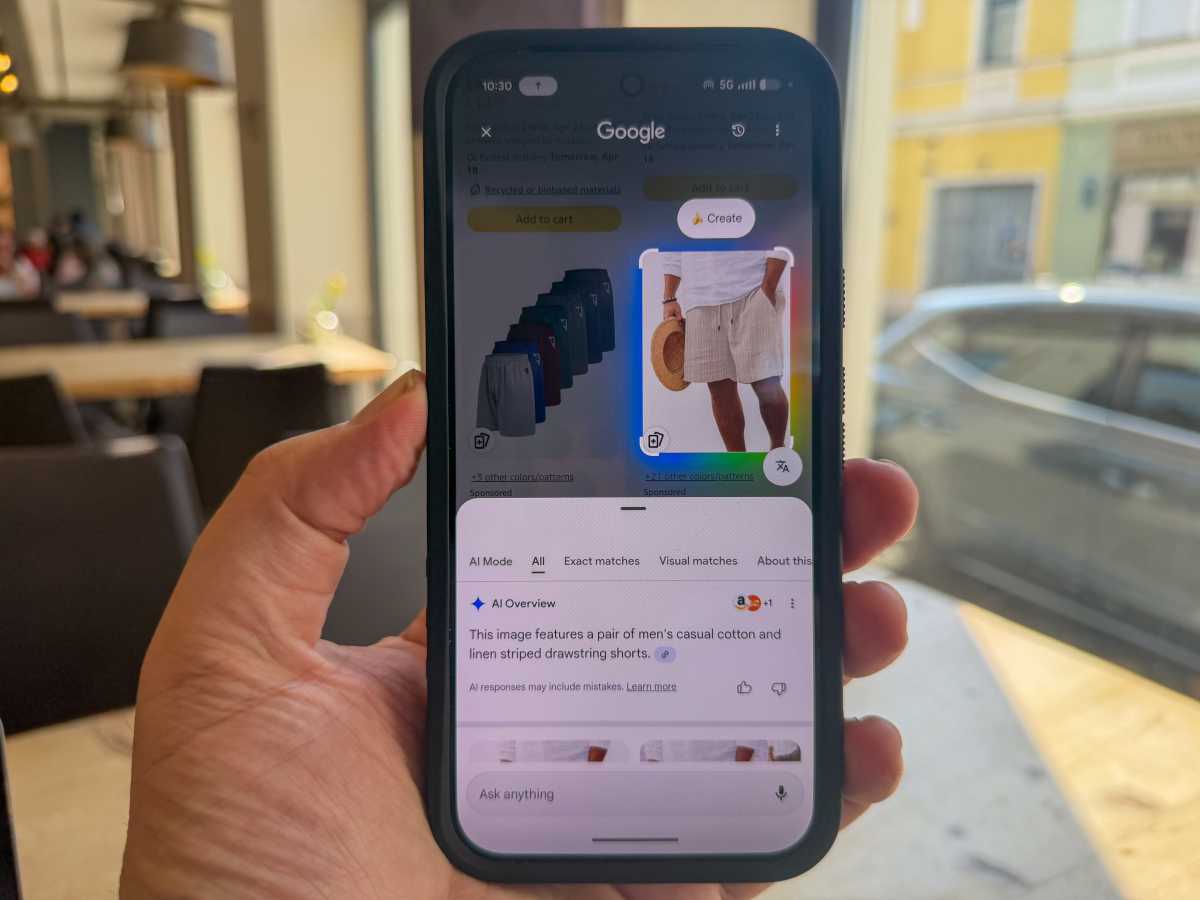
The new Try On feature is amazing
John Brandon / Foundry
I saved the best for last because this is the one that made me think AI tech is not only helpful but is also a bit magical. Google has offered “Circle to Search” (eg, on the web, you can circle anything to find out more about it) since early 2024.
The March drop includes a fantastic new feature that improves the experience. If you find clothing you like on the web, you can long-press on the navigation bar to activate Circle to Search. Then, when you circle an outfit, you’ll see the search results.
Select the option ‘Find the Look’ to see the outfit. You can use a new feature to try on the item. You can use a model or upload a picture of yourself first to see how it looks when you wear it. This feature does require that the brand works with Circle to Search.
I found many clothing brands worked fine, such as a few Amazon shirts and pants I tested.