
Samsung’s Galaxy S26 range has launched, but with the Ultra model getting all the best hardware features, including the innovative and exclusive Privacy Display, the other phones in the range must rely more on software to remain interesting.
The good news is that the feature race is now in full force, primarily thanks to Galaxy AI. We’re still making 13.5 billion phone calls per day worldwide and doomscrolling constantly on Instagram, but if you’re not using AI to edit a photo by voice or ordering food to be delivered at a set time, you’re missing out.
Samsung has made significant strides forward with the Galaxy S26 smartphone, and those two examples are proof positive. AI is turning phones into pocket assistants.
The most interesting finding with the Samsung S26 – especially compared to the Google Pixel – is that the jaw-dropping features tend to focus on real-world interactions. I was impressed with Pixel 10 software tricks like vibe coding (making apps with a prompt), but the S26 is a device that enhances your life.
For example, you can film someone as they walk and the camera will lock on horizontally. When you’re hungry, you can ask Gemini to order food that then arrives at your door.
I experimented with dozens of Galaxy AI features on the S26 Plus and found six that were so ground-breaking, I kept telling people about them and demonstrating how they work. It’s a true sign of innovation when you suddenly become a champion for the features. Here they are and how to use them.
1. Text voice replies during calls with your own voice

Talk on the phone by text
John Brandon / Foundry
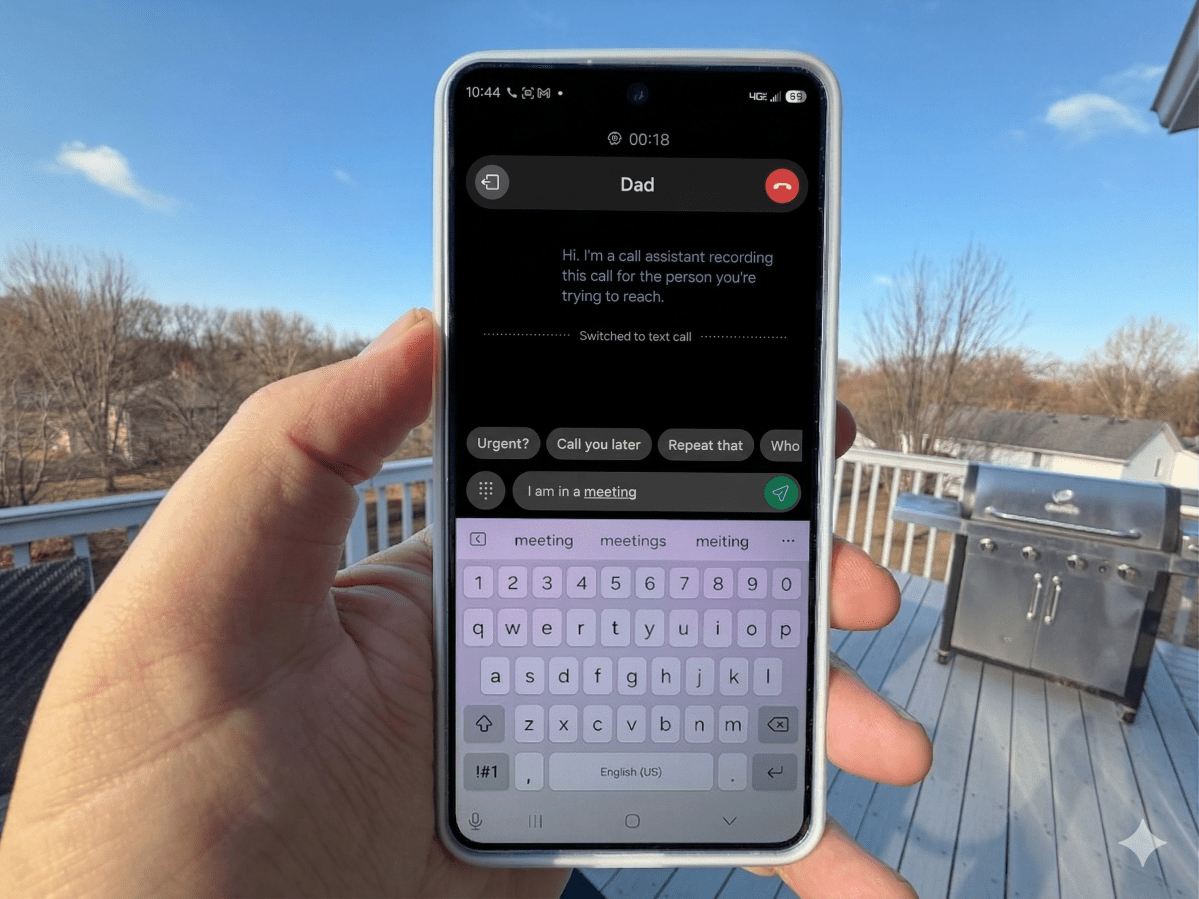
The Google Pixel 10 has an astounding feature related to live translation (it uses your own voice to speak in a foreign language), but the S26 has a similarly jaw-dropping innovation. When you enable a feature called Text Call, you can type replies during a live phone call. The AI uses your own voice to respond, which might be the perfect AI trick for introverts like me.
To enable Text Call, open the phone dialer and use the three-dot menu on the upper right. Select Settings, then enable Text Call. You have to train the bot by saying several phrases, and my tests revealed the bot sounds a little like me, but not enough to fool anyone (like my kids).
Still, it’s absolutely amazing because the voice doesn’t sound robotic at all.
2. Edit photos with your voice
Edit photos by voice
John Brandon / Foundry
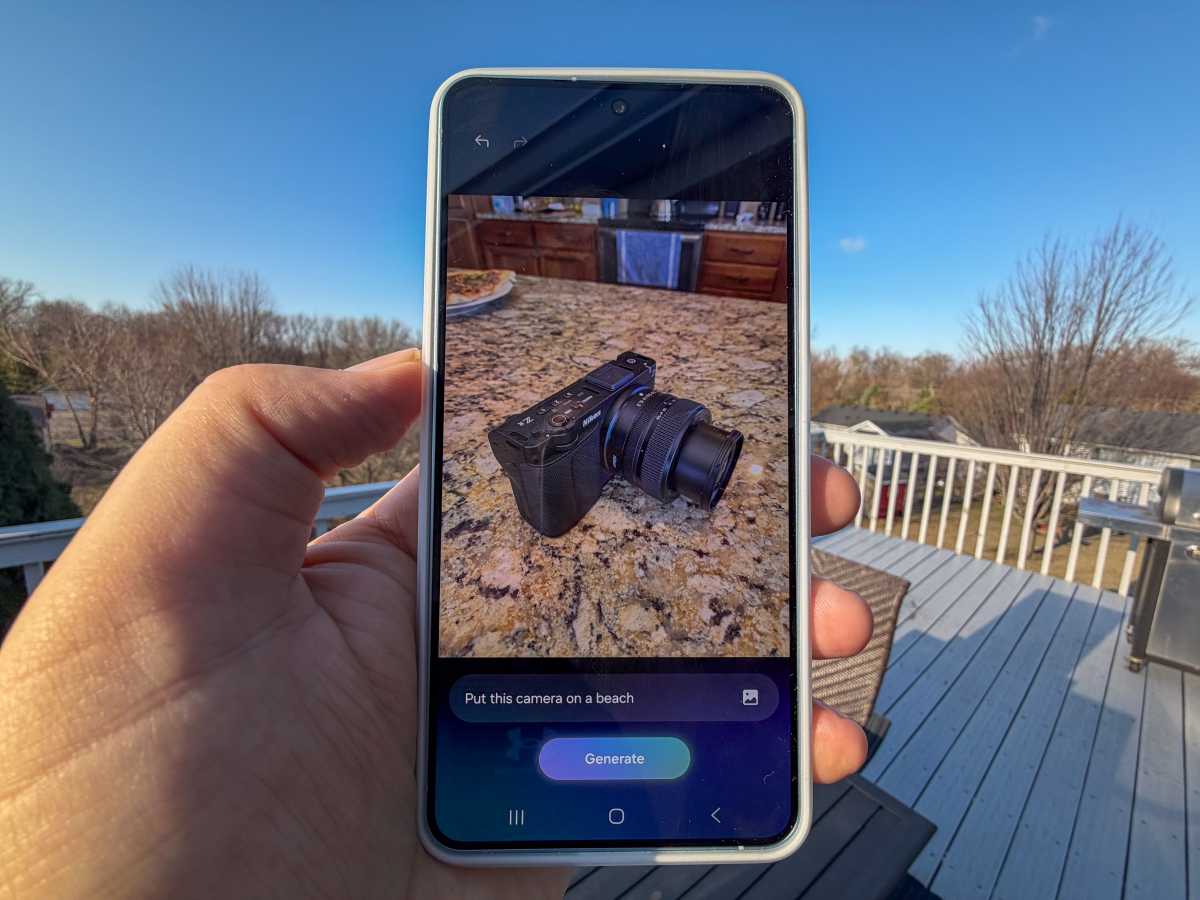
Another truly magical feature on the S26, this AI enhancement seems like another parlor trick — but it’s actually quite useful. When you snap a photo, you can make edits by typing prompts or even using your voice. It’s brilliant because you don’t need to know any of the settings or even what they mean. It’s proof that, someday soon, we will use AI for a real productivity boost.
To find the feature, click the little AI icon in the center row of icons below any photo. Click the Create icon and type any command – such as “brighten this image” to make edits. You can also click the microphone icon on the keyboard and speak any editing command you want.
3. Use Now Nudge to improve productivity
Now Nudge in a text thread
John Brandon / Foundry
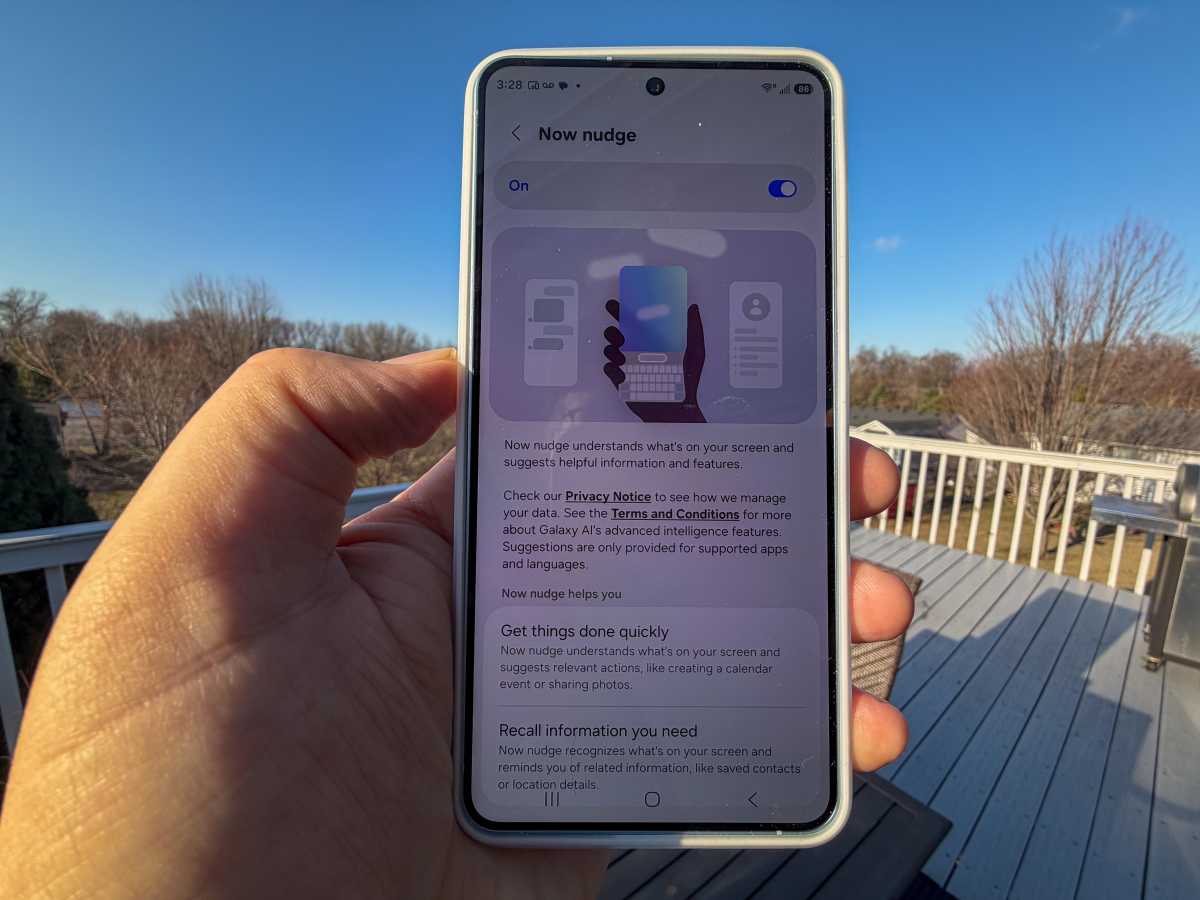
I wasn’t sure about the Now Nudge feature when I first heard about it, but it’s great. The idea is to let the phone do some of the hard work for you when it comes to scheduling meetings or finding photos.
Let’s say you are texting with a friend and receive a text that says: “Can you meet at 4pm today to talk about the party?” The Now Nudge feature will look at your calendar and suggest a time, booking the meeting for you or suggesting an alternate time.
The fastest way to enable this feature is to search in Settings for Now Nudge and then click the option and enable it. From now on, when a text comes in asking about specific photos or meetings, the AI will make real-time suggestions right in the text thread.
4. Ask Gemini to order you some food
Now Nudge in a text thread
John Brandon / Foundry
There’s something magical about this unique feature, which uses Agentic AI – a fancy term that just means the AI does work for you. Using Google Gemini on the S26, you can ask the bot to order food using a delivery service like Uber Eats or Grubhub.
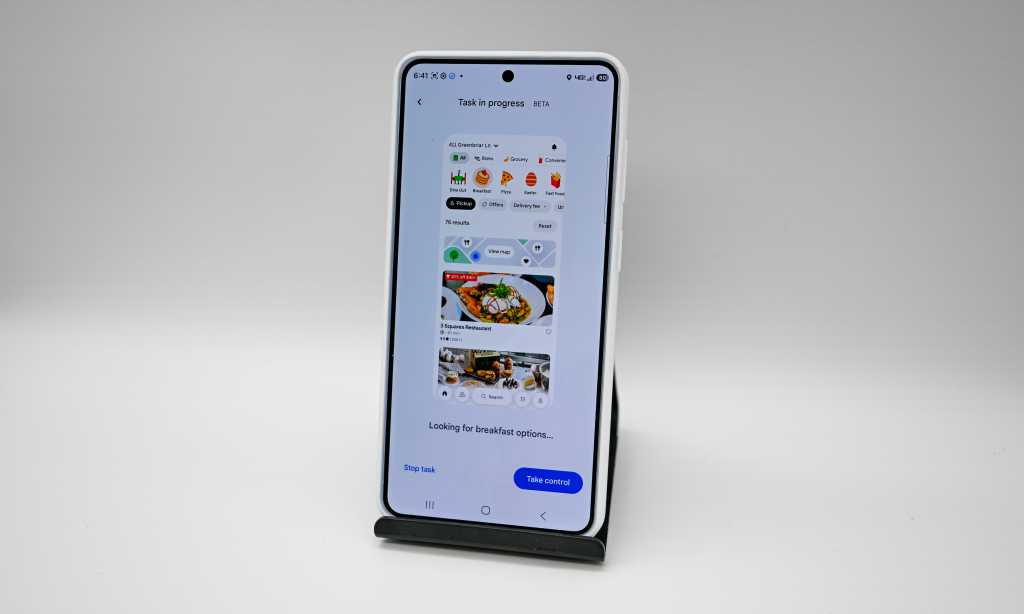
To order food, just start Gemini and use a prompt like this: “Order breakfast at Starbucks and have it delivered by Uber Eats at 8am tomorrow morning.” Gemini immediately gets to work using the Uber Eats app (which needs to be installed previously).
You can watch as Gemini goes through the ordering process, or click an option to take over the order yourself. Note this is currently limited to the US market.
5. Lock on horizontally when you film a video
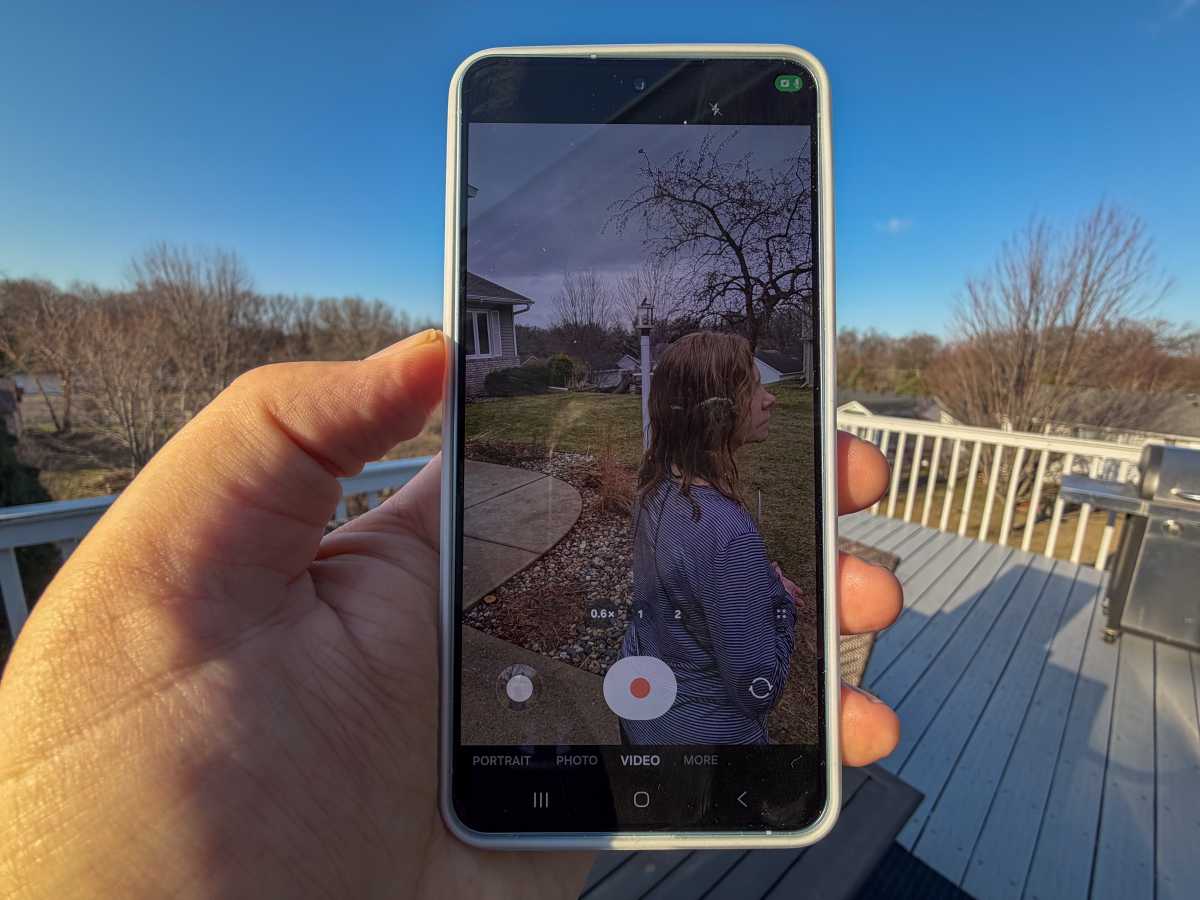
Lock onto a subject horizontally
John Brandon / Foundry
Here’s another feature that made me think AI has made a leap forward once again. I can’t explain how it works technically, but I was amazed. When shooting a video with the S26, you can enable the Horizontal Lock feature. What this means is that your subject will stay perfectly horizontal no matter how you turn the phone. The phone can turn this way and that, but the camera uses AI to keep your subject perfectly straight.
When you record a video, look for the little icon of a person running at the top of the screen, but make sure you select the one that has a little lens-lock icon. When you shoot a video, your subject will stay horizontal in the frame even if you can’t keep the phone straight.
6. Scan a document in seconds
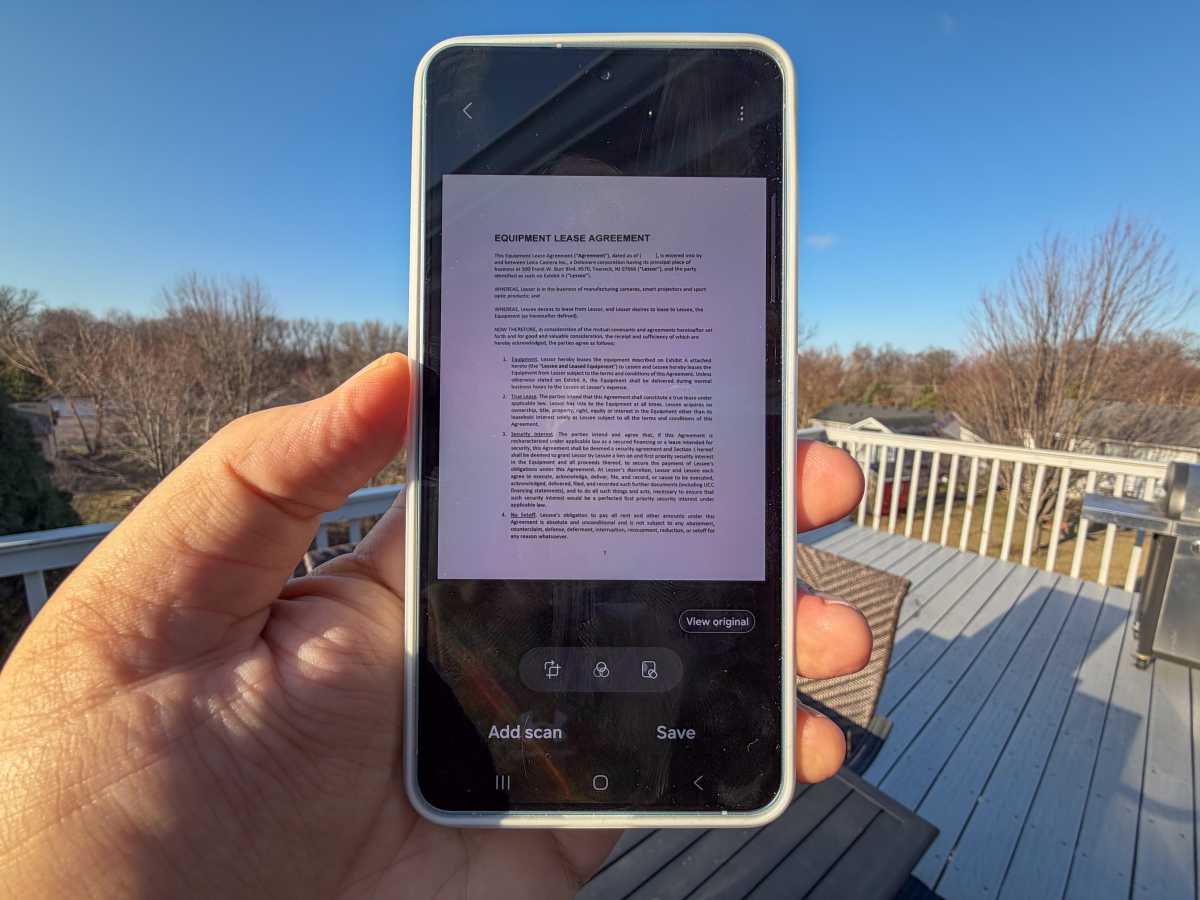
Scan a document without smudges
John Brandon / Foundry
One last feature that literally made me sit up in my seat for a second has to do with scanning documents. You may already know that the iPhone (and many smartphones) can scan documents.
For example, with an iPhone, you can use the Notes app to enable scanning mode, which automatically identifies a sheet of paper and crops only to that sheet automatically. Handy, right? Except the S26 beats that by a significant margin.
When you use the camera and hold the phone over a contract or some other official sheet of paper, the S26 automatically detects that it’s a document. That feature has existed for a while, but with the S26’s new AI version, if there’s a smudge, shadow or a stray finger in the way, the phone removes it.
There are no settings to enable, it just works out of the box. When the phone detects a document, you just have to snap the photo. Any edits that are needed occur automatically.
Also check out our expert tips and tricks for the Galaxy S26 Ultra.