




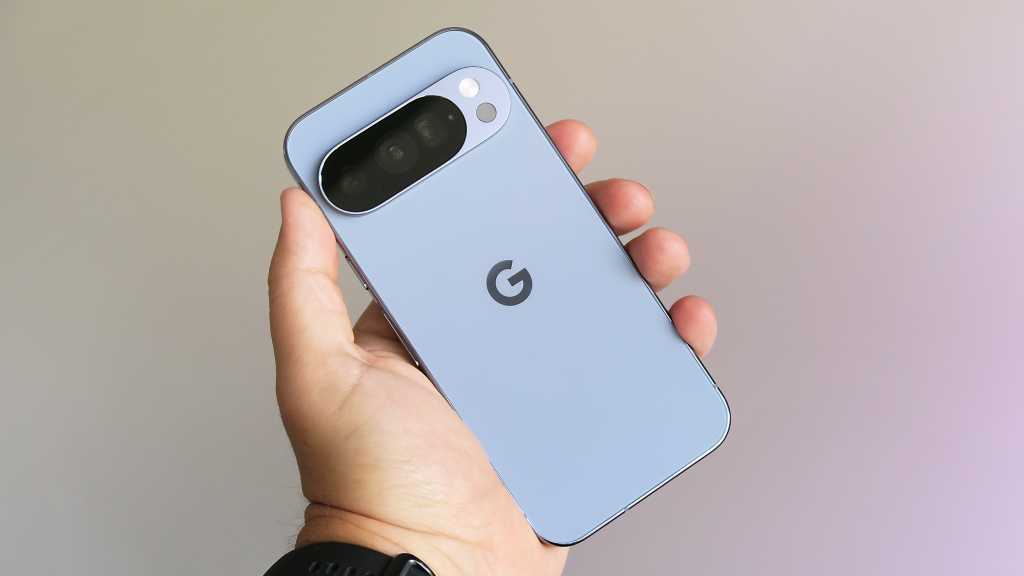

Not every phone is the same, something that’s increasingly important in a crowded market that includes last fall’s iPhones, Samsung’s new S26 models, and the trusty Google Pixel 10 Pro phone. The Pixel 10 Pro, for one, has some hidden functionality and unique AI features that make it stand out.

Want to find out the temperature of any object? Hold a conversation where the phone not only translates what you say but uses your own voice in the translation?
I was surprised at how advanced this model is even compared to the mighty iPhone, now falling behind in terms of AI features, most notably in the case of the Siri voicebot.
Here are the most unusual and surprising features, along with how to make the most of them and where to find them on your Pixel phone.
1. Create a song by humming it into the Recorder app
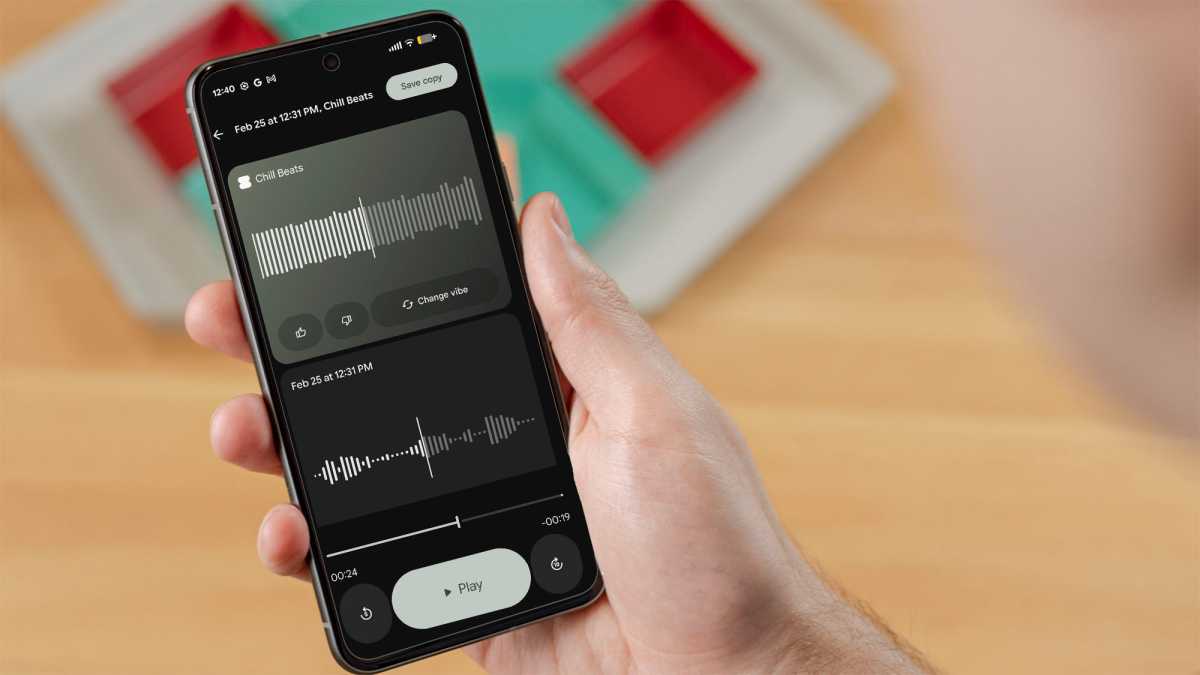
I was amazed how this one works, even if the final results were a bit underwhelming. Using the Recorder app that is included by default on the Pixel 10 Pro, you can hum or whistle a tune (or sing if you’re comfortable doing that) and the app will generate a backing track.
John Brandon / Foundry
I had to update the Recorder app to the very latest version for this to work, and even then I had to restart the phone. Google has made a big play with AI on Android phones but there are a lot of little tweaks you have to make to get some of the functions to work, including updating apps. It’s not a big deal, but it won’t work until you have the latest versions.
To get started, hit the record button and start humming or whistling. Then, select the Create Music option to generate an accompaniment track. It sounds okay and certainly matches the humming or whistling, but it’s not as useful as I imagined. It’s a cool proof of concept.
2. Vibe-code a website using AI tools
I’ve been doing a deep dive lately on vibe-coding, which is a fancy term for creating a website or an app using AI prompts. I went into this one thinking it would be highly unlikely if the Pixel 10 Pro let me create an entire website or an app just by using a single prompt.
This tiny pocket computer is now capable of hardcore programming, including integrating with Google Cloud services
I was dead wrong. In many ways, it means this tiny pocket computer is now capable of hardcore programming, including integrating with Google Cloud services, letting you adjust the interface and features, and then publishing the results.
I made a simple web application that allows you to click a button and have a voice say “you are awesome” out loud.

John Brandon / Foundry
To make it all work, you have to run Google AI Studio in a browser. That’s not as cumbersome as it seems, but there isn’t an app. I typed in my prompt and within about five minutes had a fully functional website that used a trendy, colorful design. While other phones let you access Google AI Studio, the Pixel 10 Pro makes it fast and easy.
3. Make a phone call and translate the audio so it’s your voice speaking another language
I had so much fun testing this one that it’s a little embarrassing to admit. My daughter is fluent in German, so I made several calls using the main phone dialer and was shocked to discover this feature translates what you say – using your own voice.
It’s breathtaking, to be honest, to speak another language in your own voice
That meant, during the call, I would speak in English and the bot would translate everything in real-time, but my daughter heard me speaking in German (and vice versa, even though English is her native tongue.)

John Brandon / Foundry
Making this one work took the most effort. I had to update just about every app involved, including the Phone dialer itself, all the services related to AI, and the Android operating system. Fortunately, clicking to update all apps made that step easier.
I also had to load the German language module, but that was still not enough. In the Phone dialer, there’s a setting under the three-dot menu that activates live translation. It’s breathtaking, to be honest, to speak another language in your own voice. The features are unusual and innovative, if a bit hard to find.
4. Create a mini-theatrical movie
The Google Tensor G5 chip in the Pixel 10 Pro is a hardworking piece of silicon, and it’s quite astounding how you can utilize AI on a pocket device. The best example of this is when you ask Google Gemini to make a movie clip.
I can’t explain all of the AI wizardry involved and, quite frankly, Google doesn’t reveal too much about what’s happening behind the scenes, but I can attest to the results. I used a prompt like ”make a clip that seems like it is for a major blockbuster movie” and the bot was happy to oblige.

John Brandon / Foundry
As many of us have come to realize, phones are now an interface to interact with AI, and the movie I made is a good example of that.
The resulting video looked colorful and vibrant, to the point where you might not even realize it was generated in less than two minutes by a bot. All I had to do was fire up Gemini and type my prompt – it could not be any easier.
5. Have the phone coach you on taking a photo
I need help when it comes to photography, especially since I lose track of all of the settings available, don’t always point the camera in the right direction, and even struggle with setting up a scene for the best results. Not a problem when you use a Pixel 10 Pro.
You can enable the coaching feature just by clicking a small icon at the top of the app
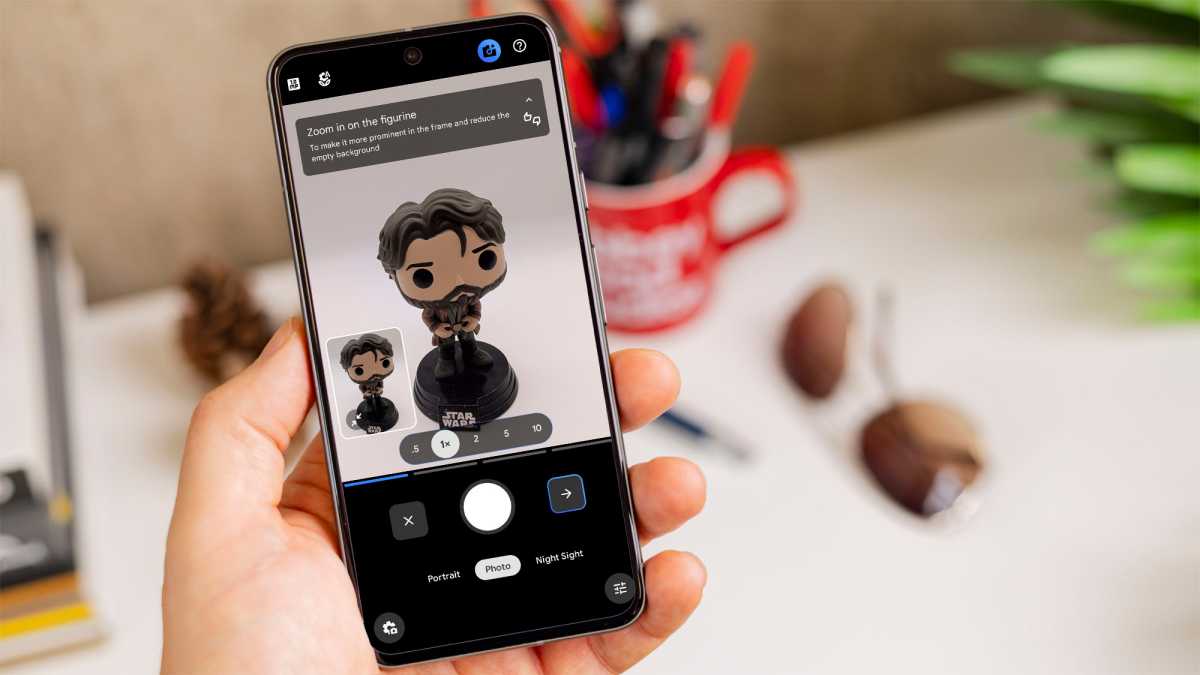
Using the Camera app, you can enable the coaching feature just by clicking a small icon at the top of the app. Once enabled, you’ll see coaching tips that suggest moving closer to a subject, straightening your viewing angle so it’s not off-kilter, and adjusting settings such as exposure and brightness.
It’s wizardly how it can improve your shots. I experimented with photos of a product I’m testing and the Pixel 10 Pro suggested using a straighter angle, even showing line markings to help me make sure everything looked more professional.
John Brandon / Foundry
Accessing the camera coach is also easy. You just click the small camera icon and wait for the phone to read the scene, then follow the tips that appear.
6. Take the temperature of any object
I saved the best one for last. I wasn’t aware that the Pixel 10 Pro even had this feature until a Google rep mentioned it to me in passing. Using the Thermometer app, you can actually take the real-time temperature of any object, liquid or not, with the phone.
The app offers tips… but they seem unnecessary. It’s just point, hold and scan.
To use the app, you have to hold the sensor (located near the camera) quite close to the object in question. I poured a cup of hot coffee and read the temperature, then stepped outside and pointed the phone at a brick of snow in my background. More than a cheap parlor trick, the Thermometer has a practical use in that you can avoid scalding yourself with a hot liquid, or check the temperature of your frying eggs and bacon in the morning to see when they’re fully cooked.
The Thermostat app is included with the Pixel 10 Pro, so it’s always a click away. The app offers tips on making it work, but they seem unnecessary. It’s just point, hold and scan.
Want to see how the Pixel 10 Pro stacks up against our other top recommendations? See our round-up of the best phones we’ve tested.