





Poor battery life is one of the biggest complaints people have about their mobile phones – whether it’s the length of a single charge, or the way the battery degrades over the phone’s lifetime.

However, it’s actually possible to make the battery last longer by tweaking a few settings.
We’ve included instructions on how to find each setting, but it’ll vary from from phone to phone. In our examples, we’re using a Google Pixel running Android 16, so your phone might not be laid out in exactly the same way. However, most phones have a search bar at the top of Settings, which you can use to find whatever you need.
Here are seven things to do right now.
1. Change your screen settings
- The screen is a major drain on the battery, and you can save a lot by lowering the brightness. You can do this manually or enable the Auto-brightness feature, which adjusts the screen to match current lighting conditions. How? Go to > Settings > Display & Touch.
- You can also adjust the screen timeout, which is the setting that decides how long before your screen switches off when you’re not using your phone. The shorter the time, the less power is consumed. How? Go to Settings > Display & Touch > Screen timeout.
- The Always-on Display feature ensures that you can always check the time and date at a glance, without waking your phone. It’s handy, but it also uses power you might prefer to spend elsewhere – and you can turn it off. How? Go to Settings > Display & Touch > Always-on Display.
- To save power, you should also turn off your phone’s screen saver, as it prevents the screen from turning off completely. How? Go to > Settings > Display & Touch > Screen Saver.
Chris Martin / Foundry
2. Switch to night mode
- Most mobiles let you use dark mode (or night mode). Instead of having a white screen with black text, it does the opposite, which uses less power. If you don’t want to switch completely, you can turn this mode on at night, which many people find easier on the eyes anyway. How? Go to Settings > Display & Touch > Dark Theme.
3. Lower the screen refresh rate
- Increasing the screen’s refresh rate makes it look better, but the feature also uses more power. As a rule, you can turn this feature off. How? Go to Settings > Display & Touch > Smooth Display.

Chris Martin / Foundry
4. Disconnect from wireless features
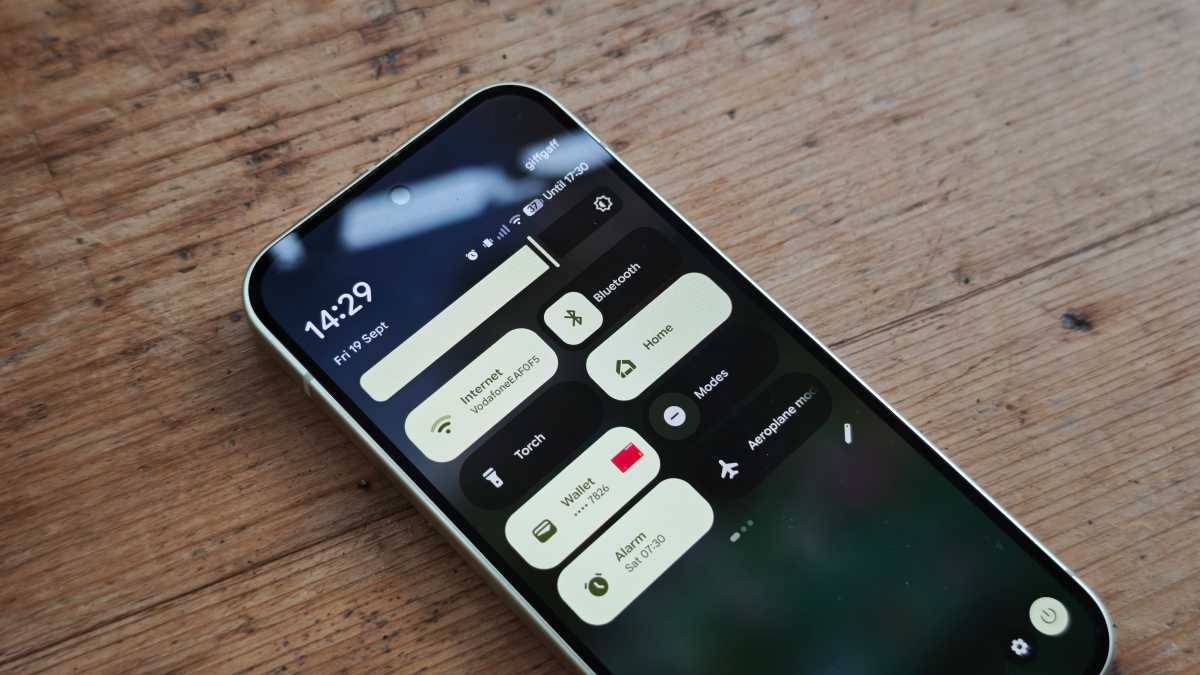
- Wireless features such as Bluetooth, GPS and NFC (near field communication) use quite a bit of power. Switch off the ones you’re not using. How? Go to Settings > Connected devices > Connection options.
5. Keep an eye on your apps
- Your apps use power, and you can see which ones use the most. How? Go to Settings > Battery > Battery usage. Scroll through the list and tap an app to get more information.
- You can disable Allow background use in the same place. When it’s enabled, the app remains active even when you’re not using it, which can be a major drain on your battery.
- Finally, go through and uninstall any apps you no longer use.
Chris Martin / Foundry
6. Find your battery-saving mode
- Many mobiles have a battery-saving mode. This makes the battery last longer by limiting the phone’s functions and speed. You can often choose between a standard mode and a super-efficient one that shuts down everything that isn’t absolutely necessary. Most phones have a smart feature that allows you to switch on battery mode automatically when the battery has dropped to a certain level, such as 20 percent. How? Go to Settings > Battery > Battery Saver.
7. Keep your phone updated
- Keeping your phone up-to-date improves security and can keep the system optimised. Make a habit of restarting your phone once a week, and check for and install updates as soon as they’re available.