
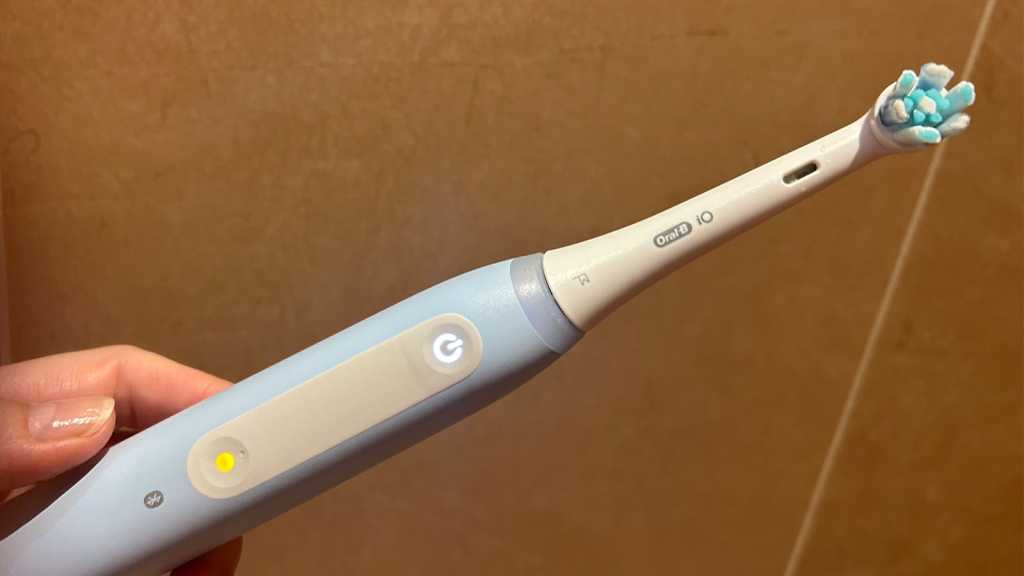
You bought your Oral-B iO a few months ago and now, although it seems to be working normally, the centre of the Mode button has started to glow yellow after you’ve used it. (According to Oral-B, it’s a yellow light, but it may look orange or amber to you.)
Here’s what it means and how to sort it out.
If you’re looking for Oral-B buying advice, you can see our top recommendations in our best Oral-B electric toothbrush round-up. And if you want to know the differences between all the iO models – what each brush does and why there’s such a big variation in prices between them – see our complete Oral-B iO guide.
One of the advantages of buying an iO is the amount of feedback the brush will provide. They all feature quadrant alerts, to let you know when to move on to the next section of your mouth when brushing, an overall two-minute brushing timer, and a pressure sensor that glows red when you press too hard and green when you get it just right. (Some of the high-end models will even give you detailed brushing guidance and feedback.)
Each brush will also let you know when the battery is running low. That’s what it means when the power button glows red.
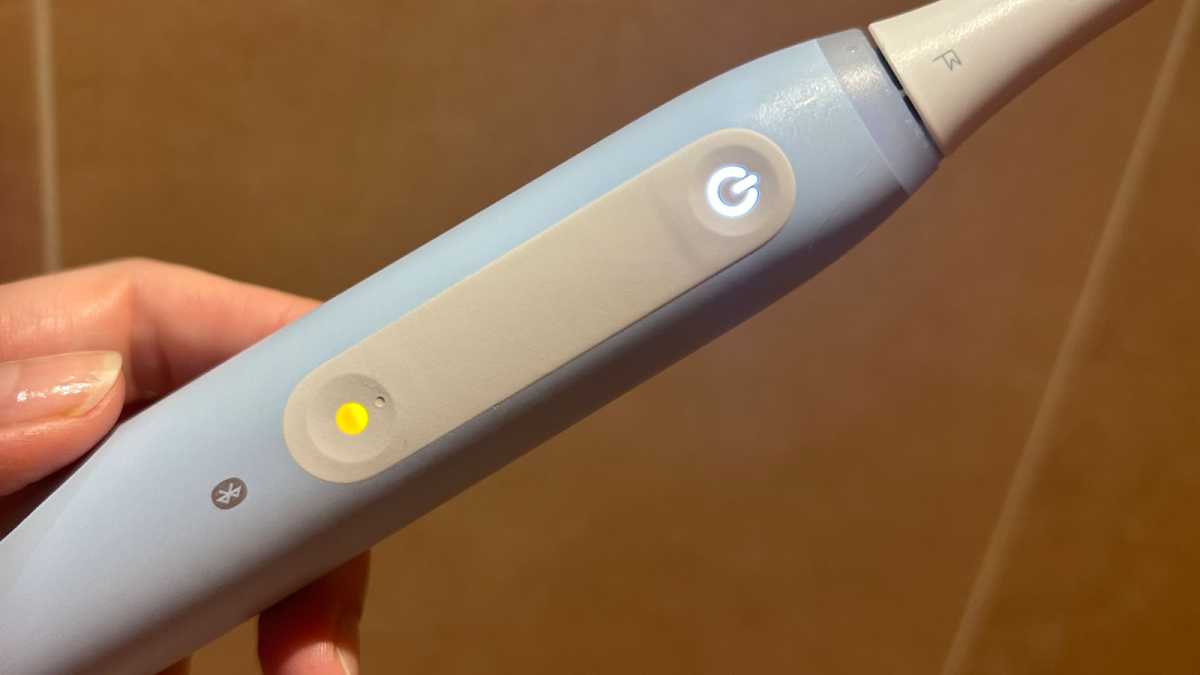
But what does it mean when the mode button – the one below the power button – lights up in yellow? Here’s how it looks on the Oral-B iO Series 4 I use daily.

Emma Rowley / Foundry
What does a yellow light on my Oral-B IiO brush mean?
The yellow light is just another type of feedback your iO provides for you. It’s letting you know that it’s time to replace your toothbrush head, as you’ve been using it for around three months.
Older brush heads start to lose their efficacy. They simply won’t clean your teeth as well as a fresh brush head. You can also tell when it’s time to replace the brush head if the bristles have started to splay or, depending on the type of brush head you use, when the colour of the bristles has started to fade.
How can I turn off the yellow light on my Oral-B iO?
Once you’ve replaced your brush head, you’ll need to reset the brush reminder. To do this on the handle, press and hold the mode button for two seconds. The brush will vibrate in response.
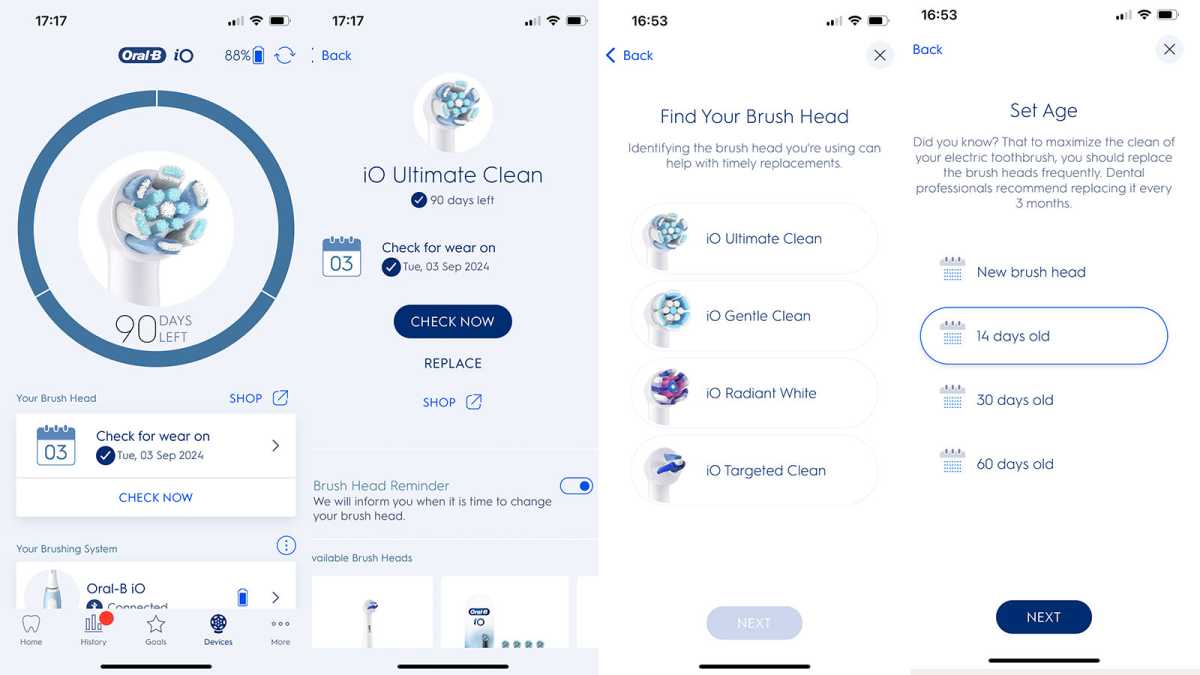
If you have an app-connected iO, you can also set up a reminder in app. To do this, go into the Oral-B app and choose “Devices” from the bottom menu. This will take you to the app page that displays brush head information. You’ll need to have your iO to hand and to switch it on so you can sync it with the app.
Foundry
The app will ask you when you began using the new brush head and which type it is. Once you go through this process, you’re all set up. You’ll get another reminder in three months’ time.
For our top Oral-B recommendations, have a look at our round-up of the best Oral-B brushes, which are all fully reviewed and tested.