
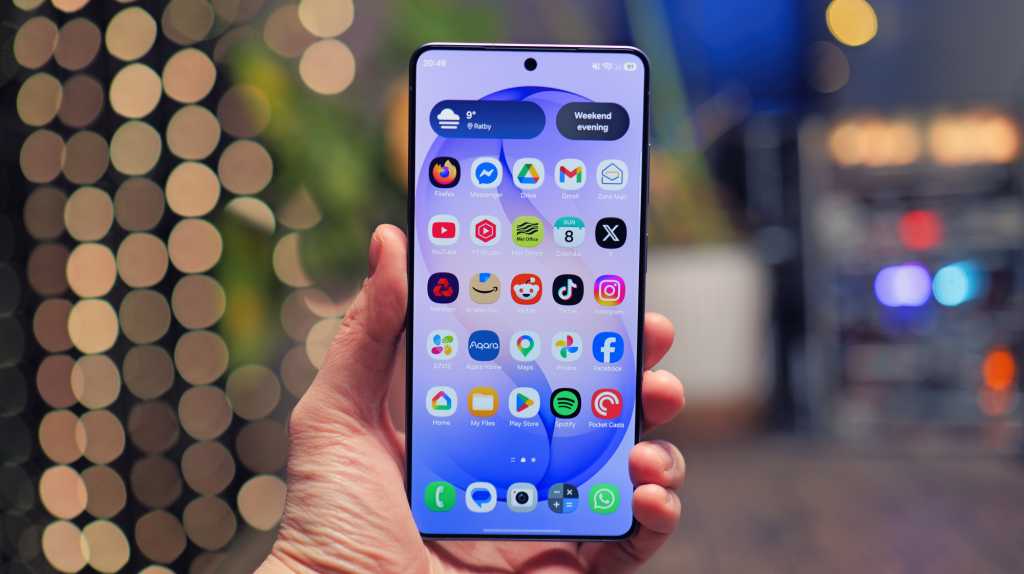
Samsung has been making excellent smartphones for years.
However, the full potential of One UI isn’t necessarily found in the system settings, but in an app that many Galaxy phone owners never install: Good Lock. Find out here what the app can do, which modules are worth using, and how to set up Good Lock.
What is Samsung Good Lock?
Good Lock is an official Samsung service that acts as a hub for a collection of add-on modules. Each of these modules delves deep into a specific area of One UI: the lock screen, navigation, the camera, notifications, multitasking and much more. The result is a level of customisation that was previously only available with custom ROMs.
The app is completely free, developed directly by Samsung, and is therefore just as secure as One UI itself.
Which Galaxy devices is Good Lock available for?
Good Lock runs on every Samsung Galaxy phone running One UI 6 or later. Specifically, this means:
- Galaxy S series: S23, S23, S23 Ultra and newer (including the S26 range)
- Galaxy Z series: Z Flip 5 and Z Fold 5 and later
- Galaxy A series: Selected models with One UI 6
- Galaxy Tab: Tab S9 and newer
Good Lock is available in the Samsung Galaxy Store and, since the end of 2025, via the Google Play Store, removing the previous restriction to certain countries. However, individual modules may still be subject to regional restrictions.
Important: The individual modules are not installed automatically. You choose which modules you wish to activate. This saves storage space and keeps the system organised.
How to install Good Lock
- Open the Galaxy Store on your Samsung device (or the Google Play Store).
- Search for “Good Lock”. The icon shows four coloured, interlocking jigsaw pieces.
- Install and open the app.
- Select the modules you want directly in Good Lock and download them by tapping the icon with a down arrow inside a box
Tip: Don’t install all the modules at once. Start with two or three that meet your specific needs.
How is Good Lock structured?
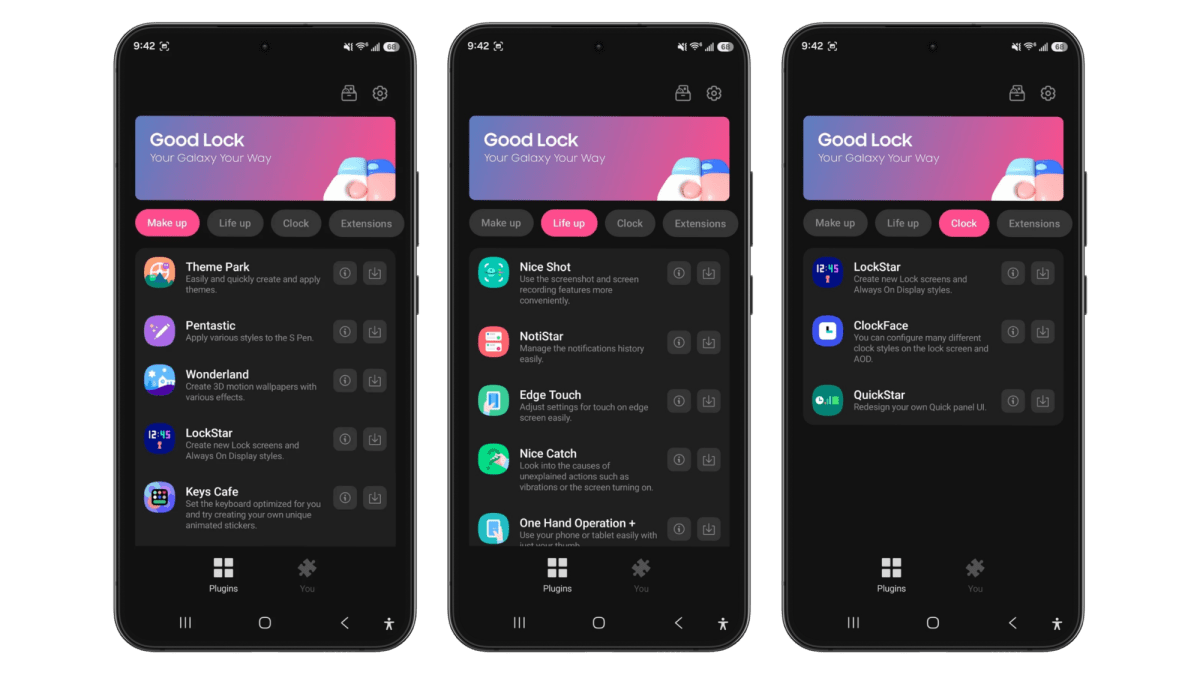
Good Lock itself is simply the control centre. Once installed, you’ll see a clear interface with four sections:
- Make up: Modules for visual customisation, such as themes, lock screen and wallpapers.
- Life up: Modules for functions and efficiency, such as navigation, camera, multitasking and audio.
- Clock: A separate category for clock modules (for example, ClockFace for the Always-On Display).
- Extensions: Additional modules available across both the ‘Make up’ and ‘Life up’ main categories.
If you tap on a module, you can download and install it directly from there, without having to go via the Galaxy Store. In total, there are currently more than 20 modules available.

PC-Welt
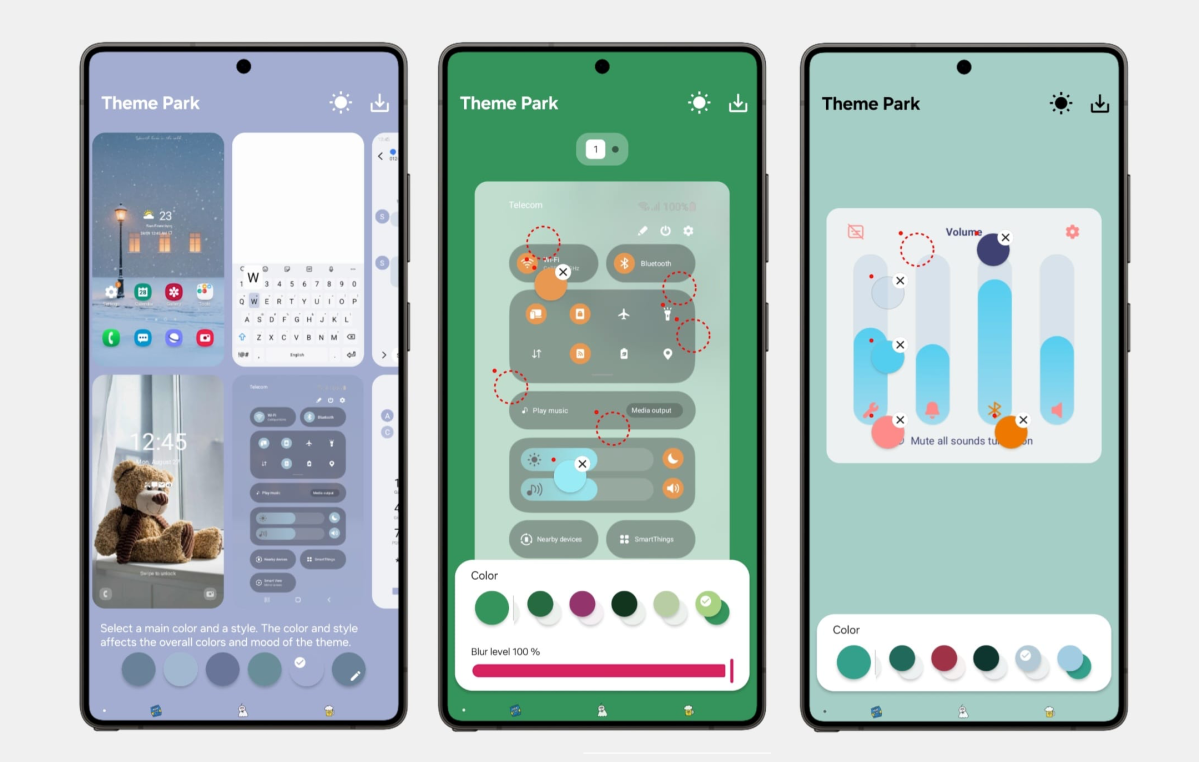
Theme Park is your gateway to visual personalisation. The module allows you to create your own themes: colours, icon shapes, background images and fonts can be freely combined. Existing icon packs from the Play Store can be integrated and managed.

PC-Welt
Since 2026, there has even been an AI theme generator. You describe in text what you want your theme to look like, and the AI automatically creates a suitable colour scheme, including icons and a background image.
One-Handed Operation
If, like me, you own a Galaxy S Ultra or Z Fold, you’ve no doubt already noticed that one-handed operation is a challenge. One Hand Operation solves this problem with six configurable Edge gestures (three per side). Each gesture can be customised individually: Back, App Overview, Screenshot, Torch, Notifications and more.
What makes this special is that the module works alongside the standard navigation bar, adding extra swipe gestures to it.
LockStar
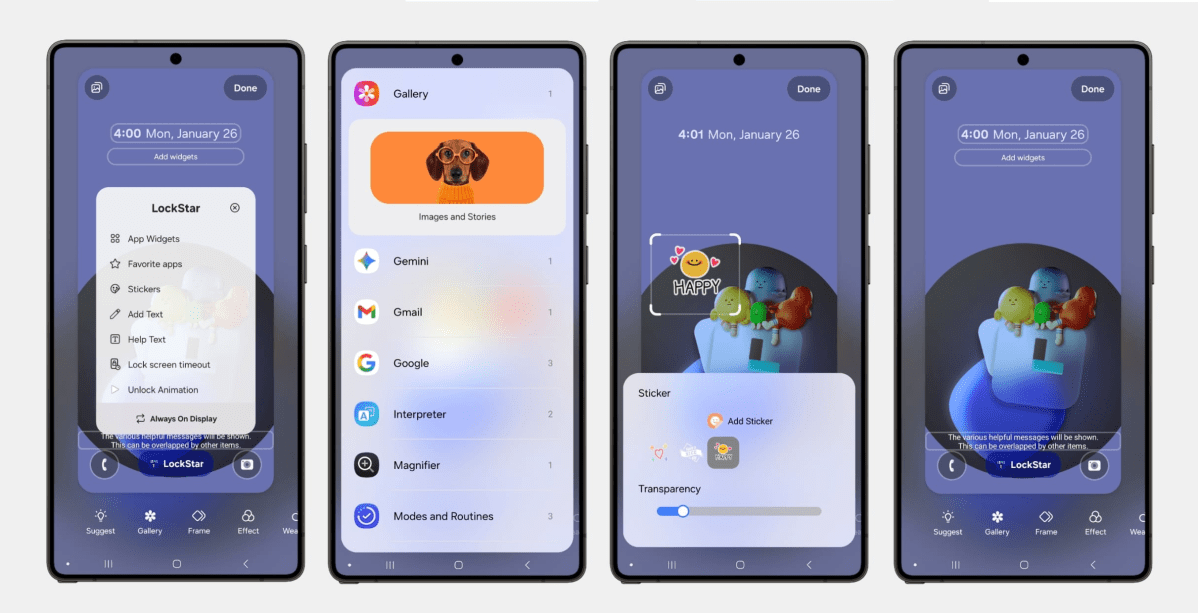
The lock screen is the first thing you see when you pick up your smartphone. However, One UI only allows limited customisation. LockStar opens up significantly more scope here. Using the WYSIWYG (what you see is what you get) editor, you can freely drag the clock, date, widgets and app shortcuts around the screen, in both portrait and landscape orientation. You can simply hide any elements you don’t like.

PC-Welt
Particularly useful: LockStar unlocks app widgets on the lock screen that Samsung doesn’t allow by default. This means you can view your calendar, step counter or weather forecast directly on the locked screen without having to unlock your smartphone first. App shortcuts can also be placed wherever you like. Tapping the camera icon launches the camera without going through the unlock process.
Also new for 2026 are animated unlock effects. The new ‘Swirl’ animation sweeps the lock screen inwards as you unlock it, whilst other styles such as ‘Curtain’, ‘Ripple’, ‘Mosaic’ or ‘Wave’ ensure that even unlocking your phone becomes a little visual treat.
MultiStar
MultiStar significantly expands multitasking capabilities. Any app can be opened in split-screen mode or as a pop-up window (even those that do not officially support it). New for 2026 are app pairs on the home screen, which launch two apps simultaneously in split-screen mode.
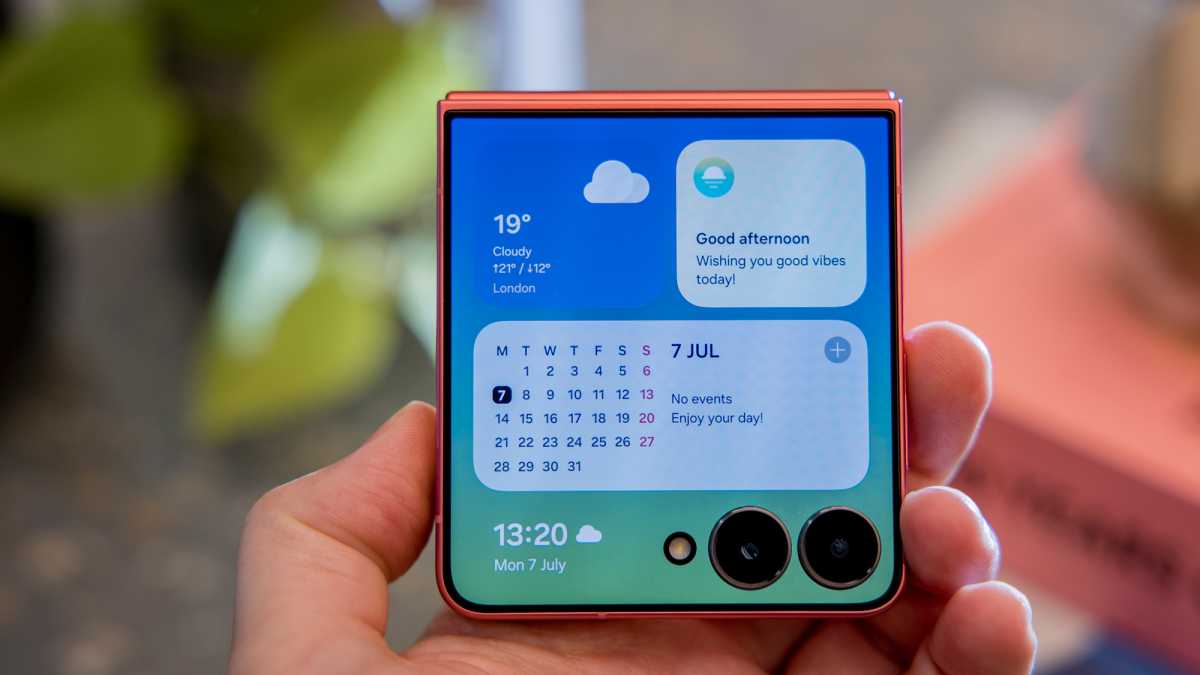
Essential for foldable users: MultiStar controls how apps switch between the cover and main screens when the device is opened and closed. Among its features is the ability to run any app on the Z Flip cover screen, which is disabled by default.
Dominik Tomaszewski / Foundry
Samsung DeX users benefit from options such as higher resolutions or more than five simultaneous apps on the connected display.
RegiStar
RegiStar is the module for anyone who finds the standard button and gesture navigation options don’t go far enough.
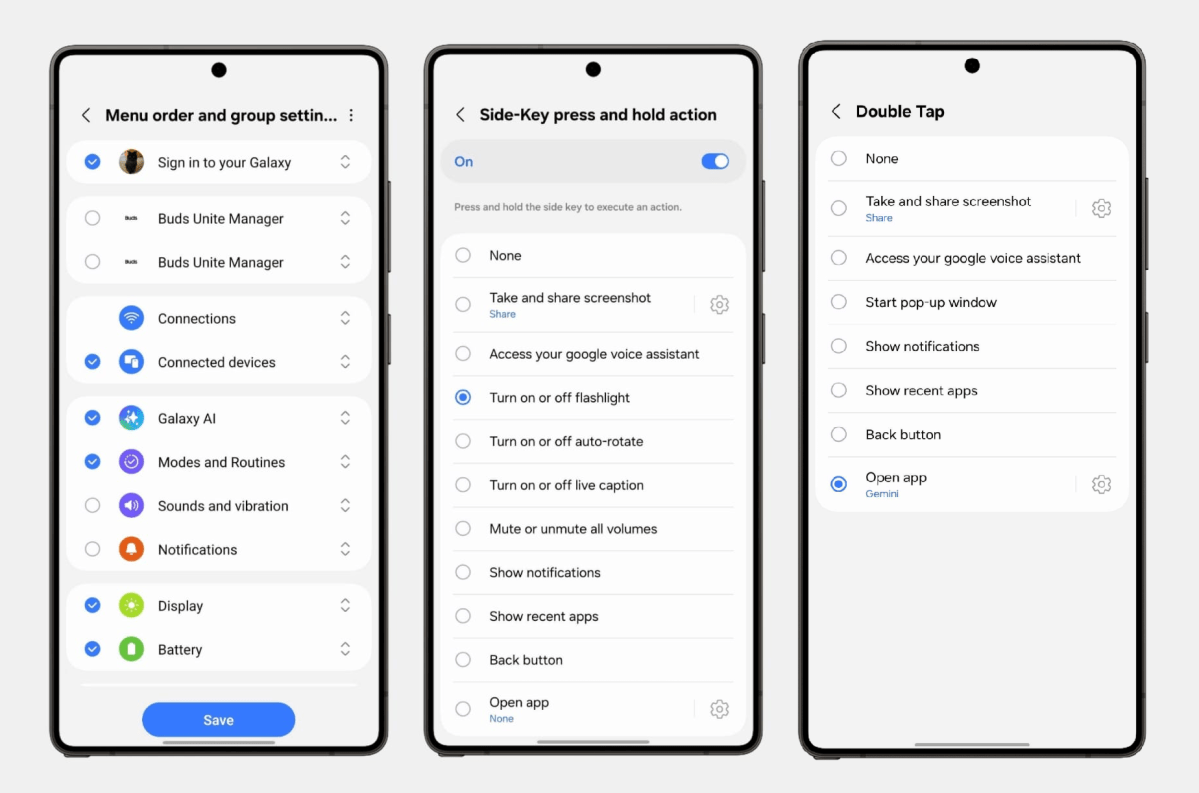
The best-known feature is the Backtap gesture: if you tap the back of your smartphone twice, a freely selectable app or function (such as the torch, a screenshot or Expert RAW) opens. Especially if the power button is already reserved for Gemini or the camera, Backtap provides a handy third control option that remains completely invisible.

PC-Welt
What’s more, RegiStar also lets you remap the side button: double-taps and long presses can each be linked to their own actions independently of one another. If you wish, you can use a long press to launch a specific app directly instead of the voice assistant.
Less well-known, but just as useful: with RegiStar, you can reorganise the One UI settings menu. Sections you never need can be hidden, whilst frequently used ones can be moved to the top. The built-in settings history logs all recent changes made to the system.
NavStar
You see the navigation bar every day, but it’s almost impossible to customise it in One UI. NavStar changes that. Provided you use classic button navigation, you can freely customise the layout, order and colour of the buttons, change the background colour of the bar and display an additional button that allows you to hide the bar at the touch of a button if required.
If you navigate using swipe gestures, you can adjust the sensitivity and active area for the left and right sides independently of one another. This is handy if, for example, you want more space on the left for the ‘Back’ gesture. You can also choose whether the line at the bottom of the screen remains visible or fades discreetly out of view.
Camera Assistant
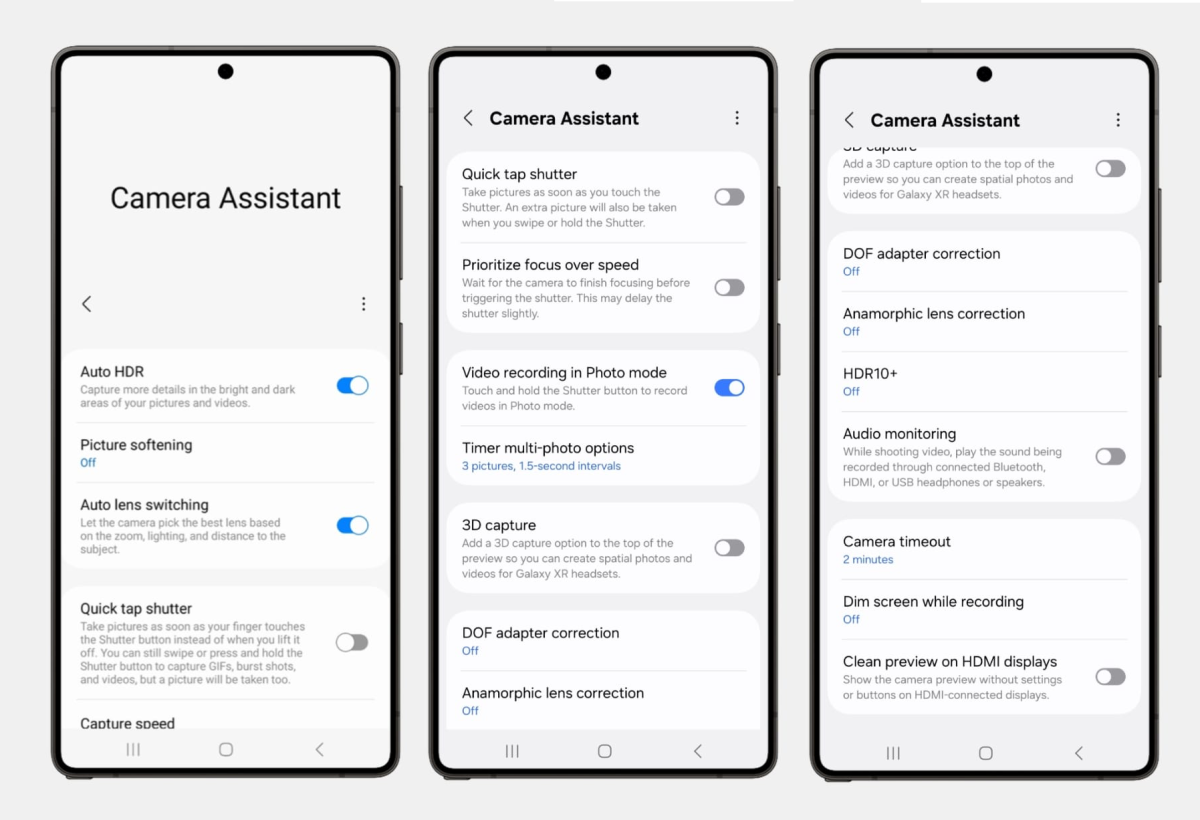
Camera Assistant unlocks hidden camera features. On the Galaxy S26 range, the module activates the 24-megapixel mode, which utilises AI fusion processing: sharper than 12 MP, smaller file sizes than 50 MP. A good balance for everyday use. Other features include the following, amongst others:

PC-Welt
- Focus peaking in Pro mode highlights in-focus areas of the image in colour, which is particularly helpful when focusing manually
- Interval burst mode allows for timed bursts of shots, for example to prepare time-lapse sequences
- Auto HDR activates automatically when the camera detects significant differences in brightness
- Automatic lens selection allows the device to choose the optimal lens itself, depending on the subject and zoom level
- The Astro Mode shortcut provides direct access to night photography mode
- Custom resolution presets allow you to permanently save your preferred megapixel settings and switch between them quickly
NotiStar
Notifications disappear quickly – sometimes too quickly. NotiStar solves this problem with a complete notification history that stores all incoming messages until you delete them yourself. Even notifications accidentally swiped away can be viewed at any time.
NotiStar also offers a personalised filtering function: you can specify which apps you want to receive notifications from and which you don’t. Keyword filters make this even more precise: For example, you can set it so that you’re only notified by a particular app if the message contains a specific word, such as ‘invoice’ or ‘appointment’. Notifications that don’t meet the filter criteria are discarded or simply stored in the history without actively disturbing you.
NotiStar is also handy for the lock screen. It works there too, allowing you to control exactly what is visible on the locked display. In February 2026, Samsung updated the module with a revamped notification management system, which further improves the overview across multiple apps.
Other recommended modules
- Home Up: Customise the launcher, such as grid size, app drawer and share menu
- Keys Cafe: Keyboard layout, keyboard effects and sounds
- QuickStar: Add or remove status bar icons; open Quick Settings directly
- Routines: Advanced Bixby automations with touch macros and app-based triggers
- Wonderland: Dynamic parallax wallpapers with motion effects
- ClockFace: Customisable clock for the Always-On Display and lock screen
- Game Booster: Gamepad touch mapping, CPU clock speed limit, game intro fast-forward
- Pentastic: S Pen pointer styles and Air Command customisations (for S Pen devices)
- Nice Catch: System log for notifications, vibrations and settings changes