



Some people might call me an Android fanboy (not true!). Others may describe me as an expert (thank you). All I know is that I’ve been writing about Android for seven years and using it for much longer – over a decade, in fact.

Google’s operating system is almost unrecognisable compared to the Android Lollipop (5.1) I first tried in 2015. Its evolution has been gradual but almost non-stop, with Google and other Android phone makers constantly striving to add new features.
And so, the merry-go-round continues with the next major version: Android 17. Let’s ignore the fact that lots of older devices haven’t got Android 16 yet.
If last year’s rollout is anything to go by, Android 17 will make its debut sometime in June on recent Google Pixel handsets, before coming to all compatible devices in the months that follow.
This slow rollout is one of the main reasons I argued that Android 17 won’t matter to most people, and I stand by that. But if, like me, you’re one of the lucky ones who owns a Pixel 6 or later, you can already try the fourth public beta.
After playing around with it for a while, three positive changes stood out to me. However, there’s another new feature Google has introduced that I can’t wait to turn off.
Wi-Fi and mobile data toggles go it alone
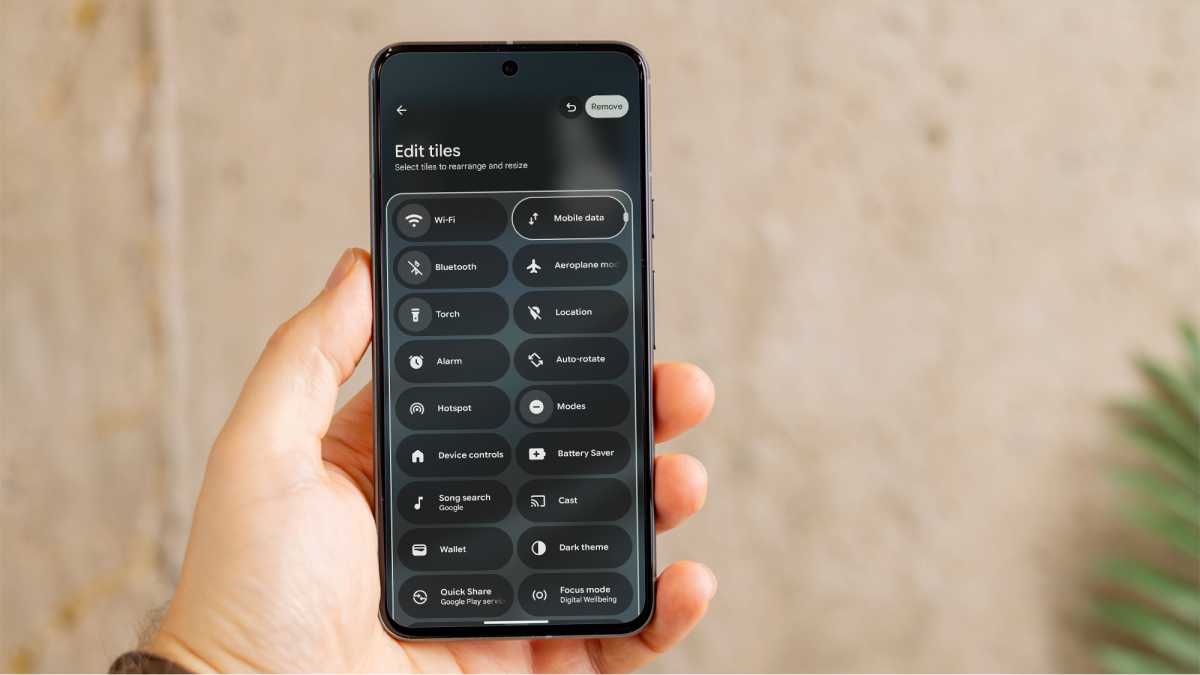
This is the big one. Since Android 12 in 2021, Google has annoyingly persisted with an ‘Internet’ tile in the Quick Settings menu, which combines Wi-Fi and mobile data toggles in the same section.
The change only applies to its Pixel phones, with the likes of Samsung’s One UI, Xiaomi’s HyperOS and Oppo’s ColorOS all splitting them by default.
As my colleague Chris Martin explained recently, the extra tap required to toggle Wi-Fi or mobile data was frustrating and unnecessary, so it’s great to see it addressed at last.
However, it’s worth noting that only Wi-Fi appears at the top of the quick settings menu by default, so you’ll need to edit the lineup by tapping the pen icon (shown below). The buttons can also be resized if you like. Hurrah!
Foundry
App labels, begone!
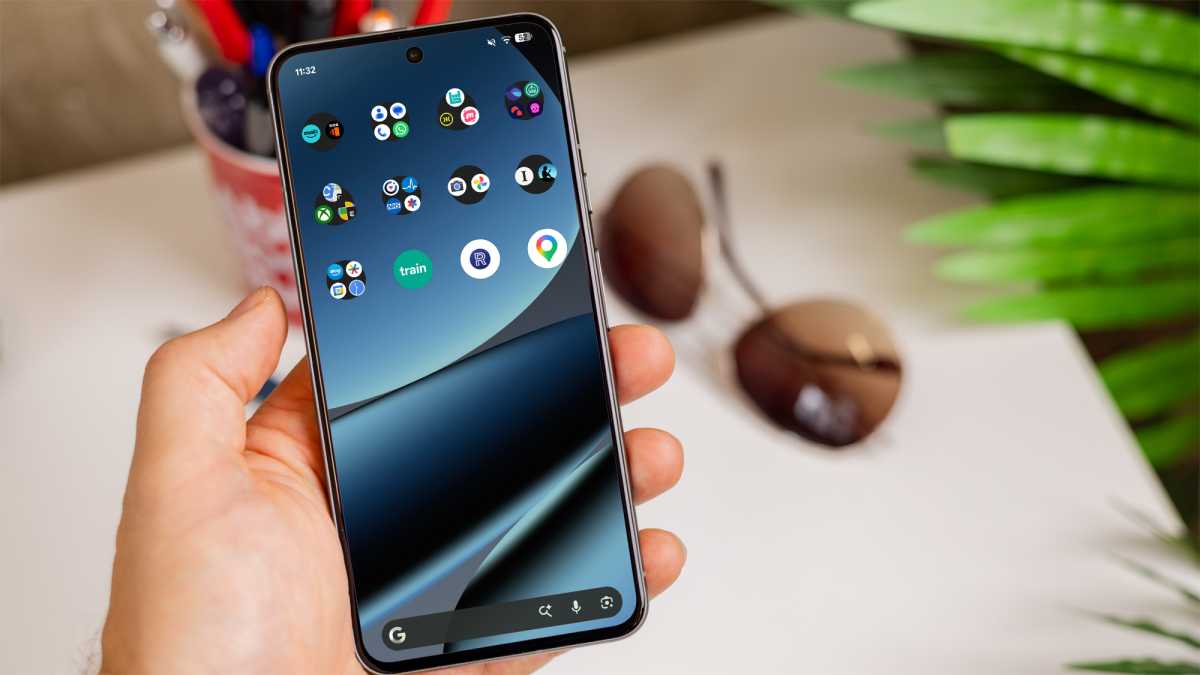
Here’s another thing that Google has remained stubborn over for ages. Most people can instantly recognise the apps they use on a regular basis from the icon alone, yet the default launcher on Pixel phones forced you to keep the app labels below them.
Foundry
In my opinion, it made the home screen feel cluttered and was totally unnecessary. It was one of the reasons I decided to switch back to a Samsung Galaxy phone recently.
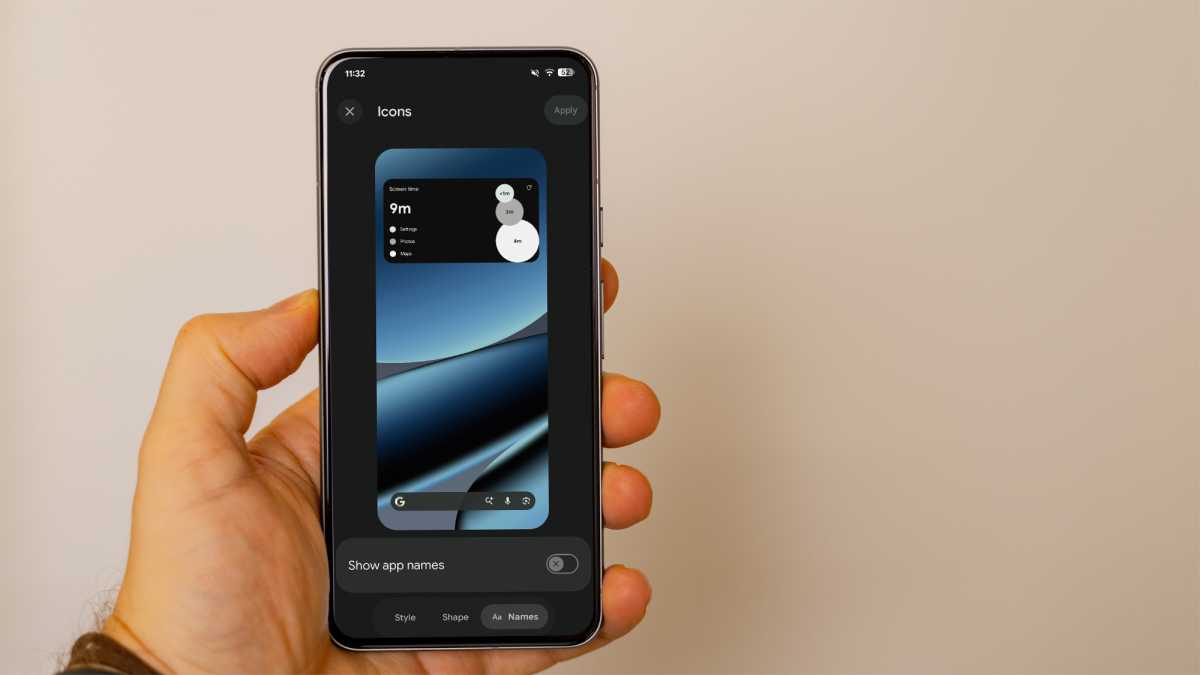
The removal of this requirement is a key step forward. Instead of swapping launchers, I can just long-press the home screen, then tap Wallpaper and style > Icons > Names and toggle ‘Show app names’ to off. It’s as simple as that.
The only snag is that there doesn’t seem to be an option to turn them on for folder names only. Give the people both options, Google!
Foundry
Gemini, keep it down
Like basically everyone these days, I often rely on my phone to listen to music or podcasts. Most of the time, this is via headphones or a Bluetooth speaker. Occasionally, I use the inbuilt speakers, but only when I’m in a private place. (I can’t stress this enough: Nobody. Wants. To. Hear. Your. TikToks.)
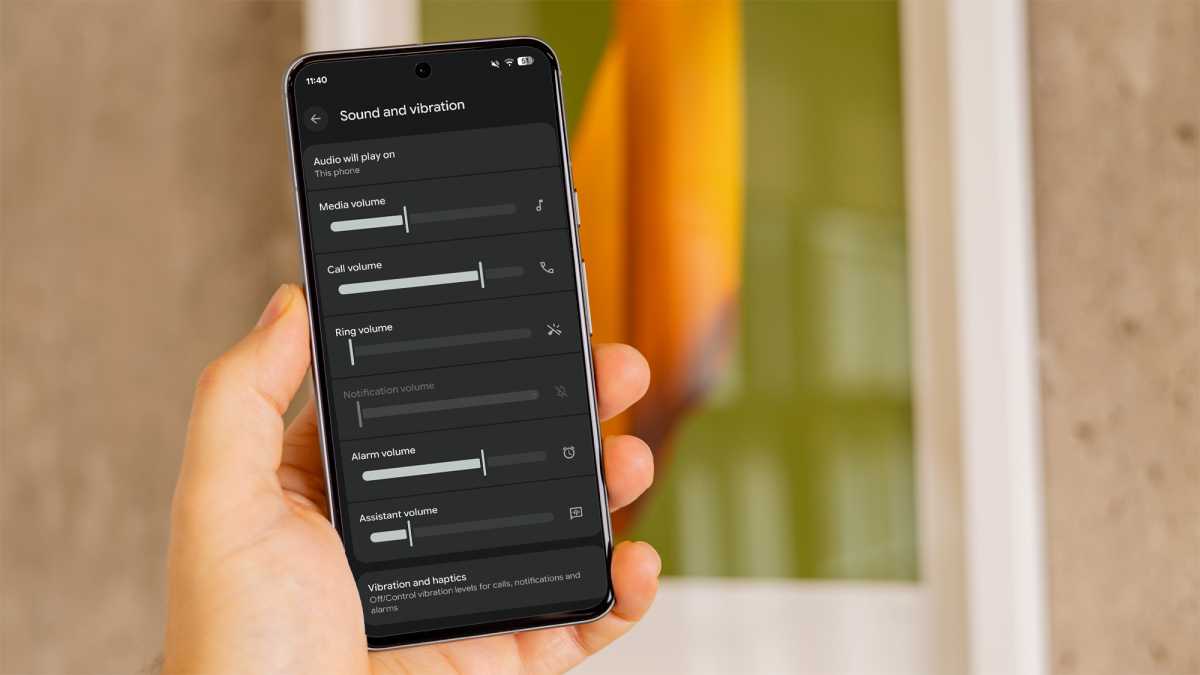
But, as someone who’s been won over by the power of Gemini in recent months, I rarely want the volume of my tunes to be the same as Google’s AI chatbot. It leads to a jarring experience, as Gemini is nearly always too loud or quiet in its responses.
Google has solved the Gemini volume imbalance, and I’m delighted
Luckily, Google has solved the Gemini volume imbalance, and I’m delighted. Its new ‘Assistant volume’ control allows you to set the volume of Gemini (or any other AI assistant you’re using) independently of media, calls and notifications.
Just head to Settings > Sound and vibration to see the new slider.
Foundry
It’s a small change, but one that should allow my music and Gemini’s floor-cleaning tips to co-exist much more harmoniously.
Bubbles I can’t wait to burst
While there’s been much talk of an ‘AI bubble’ in recent months, they’re taking on a very different meaning in Android 17.
Google appears to have taken a (very delayed) leaf out of Meta’s book, after the Facebook owner added a similar feature known as ‘Chat Heads’ to its Messenger app back in 2013. I hated it then, and I still hate it now.
In my view, the Bubbles feature is a less effective way of managing open apps that encourages distraction
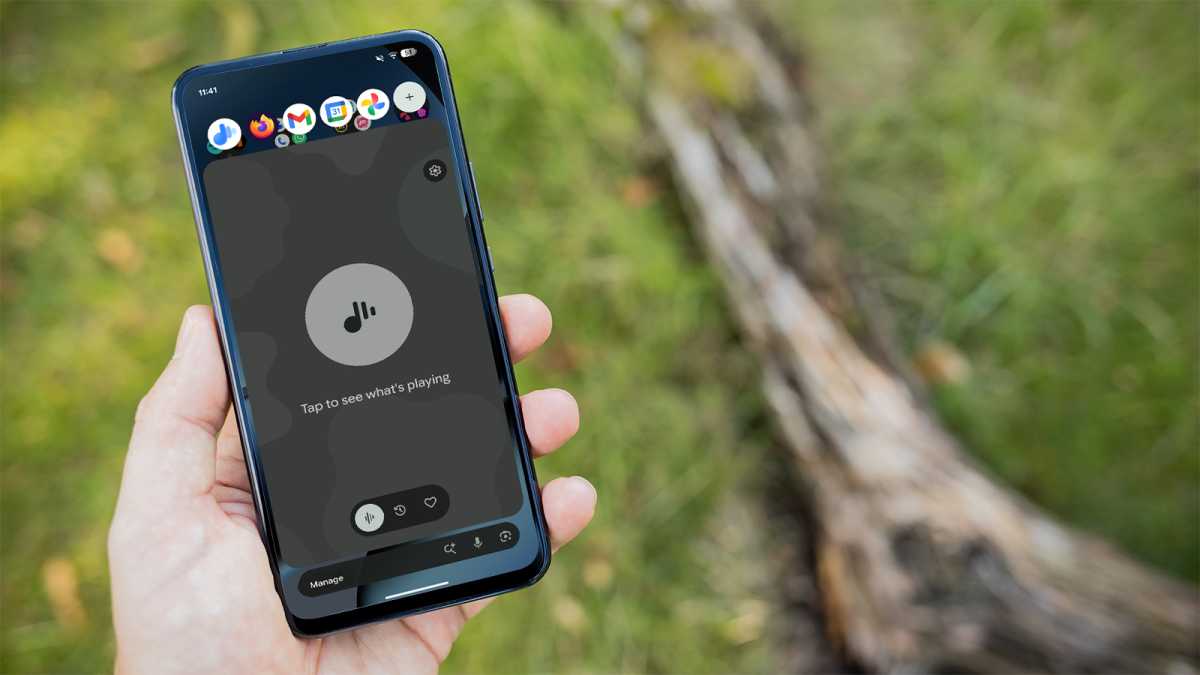
The idea is simple: create small, floating windows of up to five apps (almost all third-party ones I tried are supported), which then live within an easy-to-access menu in the corner of the screen. Getting started is as simple as long-pressing the icon on the home screen and choosing ‘Bubble’.
Presumably, the idea is to make multitasking easier, giving you two-tap access to the bubbles while using any app. But that’s exactly what the ‘Recent apps’ screen is designed for!
In my view, the Bubbles feature is a less effective way of managing open apps that encourages distraction. It doesn’t support split-screen or any other multitasking features, so you’re never using two or more apps simultaneously.
Foundry
The bubbled version of each also barely takes up more than three-quarters of the screen, significantly reducing the viewable information. Even on the 6.8-inch Pixel 10 Pro XL, this was frustrating. I can’t imagine what it must be on a much smaller phone.
Luckily, Android 17 makes it easy to pretend that Bubbles don’t exist. Which is exactly what I plan on doing.
The overall picture is very positive
Despite my misgivings about Bubbles, I’m very pleased with the direction Android 17 is moving in.
My fears about Android 16 going ‘full Gen Z’ weren’t quite realised, meaning its successor required only small tweaks rather than a dramatic overhaul.
So far, that’s exactly what Google is implementing, making the Pixel phone experience in particular much more intuitive and enjoyable to use.
I’d anticipate plenty more small tweaks and improvements like these in the final version of Android 17, which could begin rolling out as soon as June. I, for one, will be installing it on my Pixel as soon as possible.
Want to learn more? Read our full, in-depth guide to Android 17.